WSL UI User Guide
A complete guide to managing your WSL distributions with WSL UI.
Table of Contents
- Dashboard Overview
- Toolbar
- Managing Distributions
- Quick Actions
- Remote Desktop (xrdp)
- GPU Status & NVIDIA Containers
- Installing New Distributions
- Linux Desktop Setup Scripts
- Backup and Restore
- Custom Actions
- Language
- Settings
- Pending Configuration Changes
- Themes
- Keyboard Shortcuts & Accessibility
Dashboard Overview
The main dashboard shows all your WSL distributions at a glance.

Each distribution card displays:
- Name and Linux distribution info
- Status badge - Running (green) or Stopped (gray)
- WSL version - WSL 1 or WSL 2
- Resource usage - CPU, memory, and disk when running
- Source badge - How the distribution was installed (Store, Container, Import, etc.)
Filtering Distributions
Use the filter bar to find specific distributions:

- Status - Show only running or stopped distributions
- Source - Filter by installation method
- WSL Version - Show only WSL 1 or WSL 2
Status Bar
The status bar at the bottom of the dashboard shows:
- Health status indicator
- WSL version with update button
- Mounted disks count
- Distribution count (instances/active)
- Total memory usage
- Default distribution name
Toolbar
The header toolbar at the top of the window provides the primary actions:
- New - Open the dialog to install a new distribution (Microsoft Store, container image, LXC catalog, or custom source).
- Import - Restore a distribution from a
.tarbackup file. - Sync - Manually refresh the dashboard from WSL. This re-reads the list of installed distributions and updates their state, disk size, OS info, and metadata. The app already polls in the background on a configurable interval (see Settings), but Sync triggers an immediate, visible refresh. It is useful after you make changes outside the app — for example, running
wsl --import,wsl --unregister, orwsl --set-defaultfrom a terminal — when you want the dashboard to reflect those changes right away rather than waiting for the next poll. - Shutdown - Shut down all running WSL distributions (asks for confirmation). Equivalent to
wsl --shutdown. - Open WSL System Shell - Launch a terminal in the WSL system (admin) context.
- Help - Open the in-app help.
- Settings - Open the Settings page.
Managing Distributions
Quick Actions Menu
Right-click any distribution or use the menu button to access quick actions:

- Open Terminal - Launch a terminal session
- Open Remote Desktop - Connect via xrdp (only shown when xrdp is detected — see Remote Desktop)
- Open File Explorer - Browse files in Windows Explorer
- Open in IDE - Open in VS Code or your configured IDE
- Restart - Stop and start the distribution
- Export - Save to a .tar backup file
- Clone - Create a duplicate
- Set as Default - Make this the default distribution
Manage Submenu
Advanced management options are in the Manage submenu:

- Move - Relocate to a different drive
- Resize Disk - Expand the virtual disk
- Compact Disk - Reclaim unused space from the virtual disk
- Set Default User - Change the login user
- Rename - Change the distribution name
- Sparse Mode - Enable automatic disk reclamation
- Set WSL Version - Convert between WSL 1 and 2
Compact Disk
Reclaim unused disk space from a distribution's virtual disk (VHDX):

This operation performs three steps automatically:
- fstrim - Zeros unused blocks inside the Linux filesystem
- WSL Shutdown - Fully shuts down WSL to release file locks
- VHDX Compact - Shrinks the virtual disk file on Windows
Important notes:
- Requires administrator privileges (UAC prompt will appear)
- WSL will be completely shut down during this operation
- Do not close the app or shut down your computer while compacting
- The operation typically takes 1-2 minutes depending on disk size
After completion, a notification shows how much space was reclaimed.
Distribution Info
View detailed information about any distribution:

Shows installation location, creation date, disk size, and more.
Remote Desktop (xrdp)
If a distribution is running xrdp, WSL UI exposes a Remote Desktop button on the distro card (next to Open Terminal) that launches a Windows RDP session straight into the distro's desktop.
How it works
- The app reads
/etc/xrdp/xrdp.iniinside each distribution to discover the listening port (defaults to 3390 in the bundled setup scripts). - The Remote Desktop button is only enabled when xrdp is detected — distros without xrdp don't show the button.
- Clicking it launches Windows'
mstsc.exeagainstlocalhost:<port>. - If WSL idle timeouts are not configured in
.wslconfig, the app also opens a small keep-alive terminal in the distro so the RDP session does not disconnect after WSL's default 15s idle shutdown. You can close that terminal once you're done with RDP.
No xrdp detected
If you click Remote Desktop on a distro where xrdp can't be found, you'll see a dialog pointing to the WSL2 Linux Desktop blog series and a reminder to use the bundled setup scripts (see Linux Desktop Setup Scripts).
Multi-distro port conflicts
All WSL2 distributions share localhost, so each distro that runs xrdp needs its own port. The bundled setup scripts auto-shift to the next free port (3391, 3392, …) when 3390 is already in use. See Issue #10 in the troubleshooting guide for how to assign per-distro ports manually.
GPU Status & NVIDIA Containers
WSL UI surfaces GPU support for each distribution under Settings → Per-Distribution → GPU Status.
Status rows
| Row | What it checks |
|---|---|
| DirectX GPU (DXCore) | The primary WSL2 GPU path used by CUDA, OpenCL, DirectML, and other compute APIs |
| NVIDIA CUDA (WSL2) | /usr/lib/wsl/lib/libcuda.so.1 — injected by the Windows NVIDIA driver |
| NVIDIA Container Toolkit | Whether nvidia-ctk is installed in the distro |
| CDI Specs | Whether /etc/cdi/nvidia.yaml exists for container GPU passthrough |
Each row shows Available (green) or Not Available. Use Check GPU / Check again to refresh — the distribution must be running.
When the toolkit shows "Not Available"
The panel includes a GPU container setup guide link that jumps to the GPU Containers section of the troubleshooting guide. That guide covers:
- Installing
nvidia-container-toolkiton Ubuntu/Debian and Fedora/RHEL - Generating the CDI spec with
nvidia-ctk cdi generate - The
--network=hostworkaround for the nftables error on rootful Podman in WSL2 - What to do when a Windows NVIDIA driver update breaks an existing CDI spec
- Special handling when containers run inside
podman-machine-defaultrather than the selected distro
Installing New Distributions
Click New Distribution in the header to install from multiple sources.
Microsoft Store
One-click installation of official distributions like Ubuntu, Debian, and Kali Linux.
Container Images
Create distributions from Docker or Podman images. WSL UI includes a built-in OCI implementation - no Docker installation required.
Community Catalog (LXC)
Browse hundreds of distributions from the Linux Containers image server.
Custom Sources
Add your own rootfs download URLs with optional checksum verification.
Linux Desktop Setup Scripts
If you start from a vanilla distro install and want a full Linux desktop over RDP, use the distro-specific scripts in scripts/.
| Distro | Script | Matching Blog Guide |
|---|---|---|
| Ubuntu | scripts/wsl2-ubuntu-desktop-xrdp.sh | wsl2-ubuntu-desktop-xrdp |
| Fedora | scripts/wsl2-fedora-desktop-xrdp.sh | wsl2-fedora-desktop-xrdp |
| Kali | scripts/wsl2-kali-desktop-winkex.sh | wsl2-kali-desktop-winkex |
| Arch | scripts/wsl2-arch-desktop-xrdp.sh | wsl2-arch-desktop-xrdp |
| openSUSE | scripts/wsl2-opensuse-desktop-xrdp.sh | wsl2-opensuse-desktop-xrdp |
Run the script inside the target distro shell as your normal Linux user:
bash /path/to/wsl2-ui/scripts/wsl2-ubuntu-desktop-xrdp.shEach script includes:
- End-to-end desktop + XRDP/Win-KeX install flow for that distro
- Automatic
/tmp/.X11-unixrepair for the common WSLg/XRDP socket conflict - XRDP port conflict handling (defaults to 3390, auto-shifts if already used)
- Service startup validation and troubleshooting hints
- Reminder for
.wslconfigidle-timeout settings needed for stable RDP sessions
For common fixes after setup (black screen, auth failures, port conflicts), see:
Backup and Restore
Export
Export any distribution to a .tar archive for backup or sharing:
- Open the Quick Actions menu
- Select Export to File
- Choose a save location
Import
Restore a distribution from a backup:

- Click Import in the header
- Select your
.tarfile - Choose a name and installation location
Clone
Duplicate an existing distribution:

Custom Actions
Create reusable commands that run inside your distributions.

Creating Actions
Each action has:
- Name and Icon for display
- Command with variable substitution
- Target - All distributions, specific names, or regex patterns
- Options - Run in terminal, require sudo, show output
Variables
Use these variables in your commands:
${DISTRO_NAME}- Distribution name${HOME}- Linux home directory${USER}- Default user${WINDOWS_HOME}- Windows home in WSL path format
Language
WSL UI ships with translations for a range of languages and automatically detects your system language on first launch.
Supported languages
English, Simplified Chinese (简体中文), Traditional Chinese (繁體中文), Japanese (日本語), Korean (한국어), Spanish (Español), Hindi (हिन्दी), French (Français), German (Deutsch), Portuguese — Brazil (Português), Arabic (العربية, RTL), Russian (Русский), Polish (Polski), Turkish (Türkçe), Italian (Italiano).
Changing Language
- Open Settings from the gear icon in the header
- Select the Language section under Application
- Choose your preferred language from the list
The change takes effect immediately - no restart required.
Auto-Detection
On first launch, WSL UI matches your Windows display language to the closest supported language. For example, fr-CA (French Canadian) will resolve to French, and zh-TW will resolve to Traditional Chinese.
If your language isn't detected correctly, you can always switch manually in settings.
CJK input (IME)
Composing CJK input with an IME no longer triggers default-button actions when you press Enter to confirm composition — the Enter key only fires the underlying action once composition is complete. CJK glyphs also prefer Windows-native fonts before any non-bundled fallback for clean rendering.
Requesting a New Language
Don't see your language? Click Request it on GitHub under the language picker, or open an issue directly. Community-contributed translations are welcome — see the contribution workflow in the repository.
Garbled text after reinstall?
If text appears garbled or in the wrong language after reinstalling (or switching between Store and EXE installs), see Issue #13 — typically resolved by clearing %LOCALAPPDATA%\wsl-ui before reinstalling.
Settings
Access settings from the gear icon in the header.
Application Settings

Configure your preferred terminal and IDE, startup behavior, and system tray options.
WSL Global Settings

Edit .wslconfig settings that apply to all distributions:
- Memory and CPU limits
- Swap size and location
- GUI applications (WSLg)
- Networking mode and DNS/firewall options (see below)
Networking modes
The Networking Mode dropdown exposes every mode WSL supports:
| Mode | When to use |
|---|---|
| NAT (default) | Standard WSL2 networking — distros share an internal NAT, with port-forwarding for localhost |
| Mirrored | WSL adopts the Windows host network interfaces — best for VPNs and host-discovery scenarios |
| virtioproxy | High-performance virtio-based proxy networking (WSL 2.x) |
| None | Disables WSL networking entirely |
| Bridged (deprecated) | Microsoft has deprecated bridged mode — use virtioproxy or mirrored instead. Selecting it shows a warning. |
DNS Tunneling and Windows Firewall
Two toggles below the networking mode (require Windows 11 22H2 or later):
- DNS Tunneling — Proxies DNS requests from WSL to Windows through a virtual device instead of TCP/UDP. Improves reliability on networks where DNS-over-UDP is blocked or where VPNs intercept queries.
- Windows Firewall — Lets Windows Firewall rules filter WSL network traffic. Useful for environments that require firewall enforcement.
Changes to networking settings only take effect after
wsl --shutdown. See Pending Configuration Changes.
Per-Distribution Settings

Edit wsl.conf settings for individual distributions:
- Automount options
- Network configuration
- Systemd and boot commands
- Windows interoperability
Remote Sources

Manage distribution catalogs:
- Microsoft Store entries
- Custom download URLs
- Container image references
- LXC catalog settings
WSL Distribution Sources (custom wsl --install manifests)
A separate panel — WSL Distribution Sources — lets you point WSL's native wsl --list --online and wsl --install <name> commands at a third-party manifest URL by writing the HKLM\…\Lxss\DistributionListUrl (or DistributionListUrlAppend) registry value.
This is different from the LXC/download/container catalogs above, which only affect WSL UI's own install dialog. Custom distribution sources apply machine-wide to every WSL CLI command.
How to use it:
- Open Settings → WSL Distribution Sources.
- Choose a Mode:
- Append to default list (recommended) — adds the manifest's distros alongside Microsoft's defaults.
- Replace default list — hides Microsoft's defaults from
wsl --list --online.
- Enter the Manifest URL (
http://,https://, orfile://;file://requires WSL 2.4.4 or later). - Click Preview to see which distributions the manifest exposes before committing.
- Click Apply — Windows will prompt for administrator approval (UAC) because the change is written to
HKLM.
The panel also offers one-click Suggested sources for common community manifests, and a Reset to defaults button to remove any custom registration.
Only add manifests you trust —
wsl --installwill download and execute distro images from whatever URL you register.
Disk Mounting
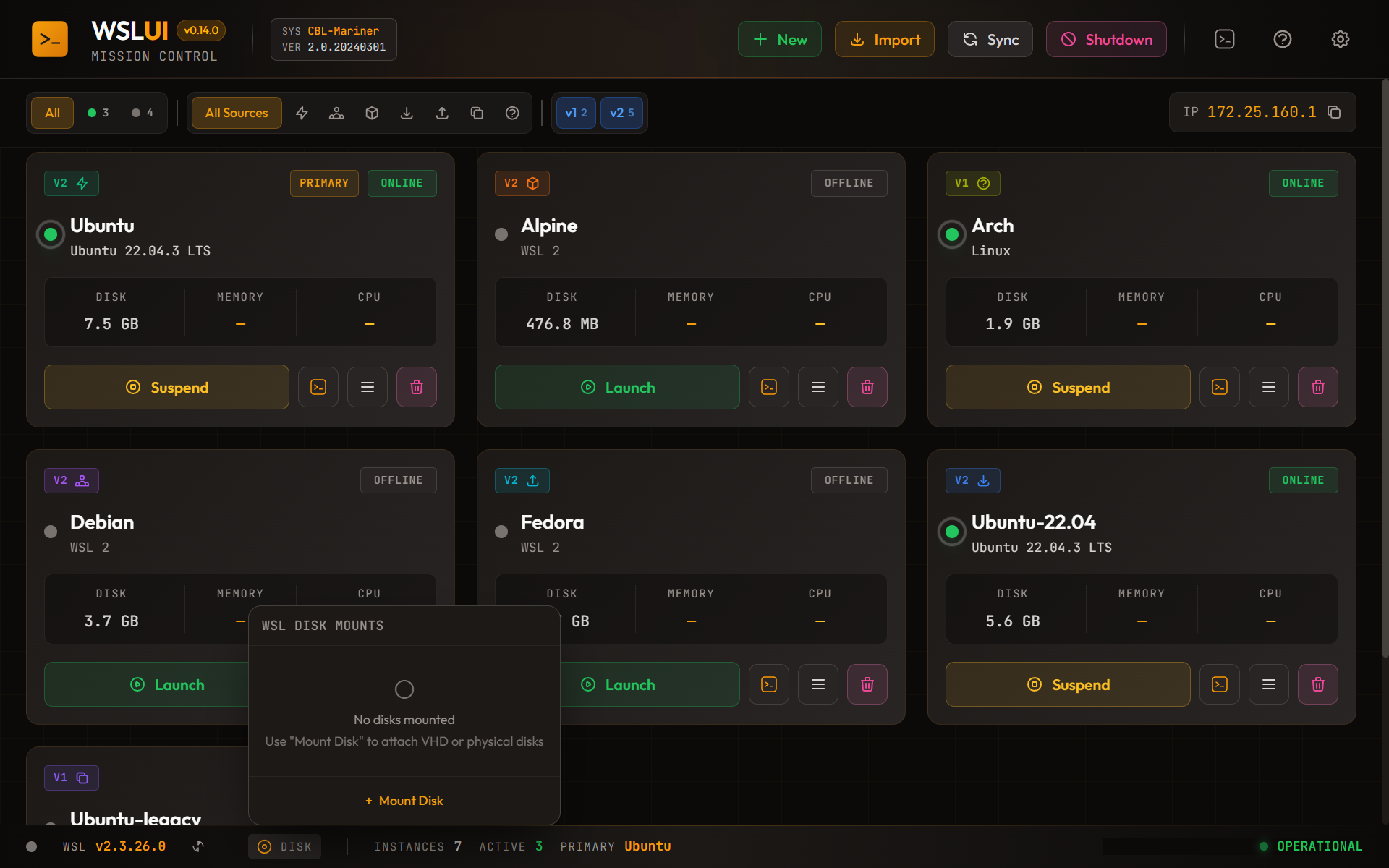
Mount VHD files or physical disks into WSL.
Pending Configuration Changes
Some .wslconfig changes (memory, processors, networking mode, GUI applications, etc.) only take effect after a full WSL restart (wsl --shutdown). WSL UI polls the running WSL state against your saved config every 60 seconds and surfaces a warning notification when they don't match:
WSL Config Pending Restart — Your .wslconfig has changes that require WSL restart to take effect. Run
wsl --shutdownto apply.
The notification stays visible until the changes are applied. You can:
- Run
wsl --shutdownfrom PowerShell or Command Prompt, or - Use Force Shutdown WSL from the status bar's WSL menu
Once the running state matches the saved config, the notification clears automatically. If you dismiss it manually, it will reappear on the next poll if changes are still pending.
Themes
WSL UI includes 17 built-in themes with full customization support.
Built-in Themes

Dark Themes: Mission Control, Obsidian, Cobalt, Dracula, Nord, Solarized Dark, Monokai, GitHub Dark
Light Themes: Daylight, Mission Control Light, Obsidian Light
Middle-Ground: Slate Dusk, Forest Mist, Rose Quartz, Ocean Fog
Accessibility: High Contrast (dark), High Contrast Light - Maximum contrast themes for low vision users
Theme Example
 Dracula - Purple/pink vampire theme
Custom Theme Editor
Create your own theme with the custom editor. Adjust 29 color variables across backgrounds, text, borders, accents, and buttons with live preview.
Keyboard Shortcuts & Accessibility
WSL UI is designed to be fully accessible with keyboard navigation and screen readers.
Navigation
| Key | Action |
|---|---|
| Tab | Move to next interactive element |
| Shift+Tab | Move to previous interactive element |
| Enter | Activate buttons, submit forms |
| Space | Toggle checkboxes, activate buttons |
| Arrow Keys | Navigate within menus and lists |
Dialogs & Menus
| Key | Action |
|---|---|
| Escape | Close any open dialog or menu |
| Enter | Submit dialog form (when valid) |
| Tab | Navigate between dialog fields |
Quick Actions Menu
| Key | Action |
|---|---|
| Enter or Space | Open menu from trigger button |
| Escape | Close menu |
| Arrow Down/Up | Navigate menu items |
Accessibility Features
- Screen Reader Support - All dialogs announce their title, status changes are announced via ARIA live regions
- Focus Management - Focus is trapped within dialogs and returns to the trigger element when closed
- High Contrast Themes - Two high contrast themes available (dark and light) for low vision users
- Reduced Motion - Animations are disabled when system prefers reduced motion
- Keyboard Navigation - All features accessible without a mouse
Troubleshooting
See TROUBLESHOOTING.md for solutions to common issues.