
Arch Linux brings rolling releases and the AUR to WSL2. If you want the latest packages and complete control over your system, Arch is hard to beat. The setup requires a few extra steps—creating a user, building packages from AUR—but the result is a lean, up-to-date desktop.
Why Arch on WSL2?
- Rolling release—always the latest packages
- AUR (Arch User Repository)—massive package collection
- Minimal base—install only what you need
- Excellent documentation—the Arch Wiki is legendary
- Learning opportunity—understand Linux internals
Prerequisites
- Windows 10 (version 2004+) or Windows 11
- WSL2 installed and working
- Arch Linux from Microsoft Store or WSL UI
Installing Arch Linux
Arch is available in the Microsoft Store. Install it through WSL UI for easier management.
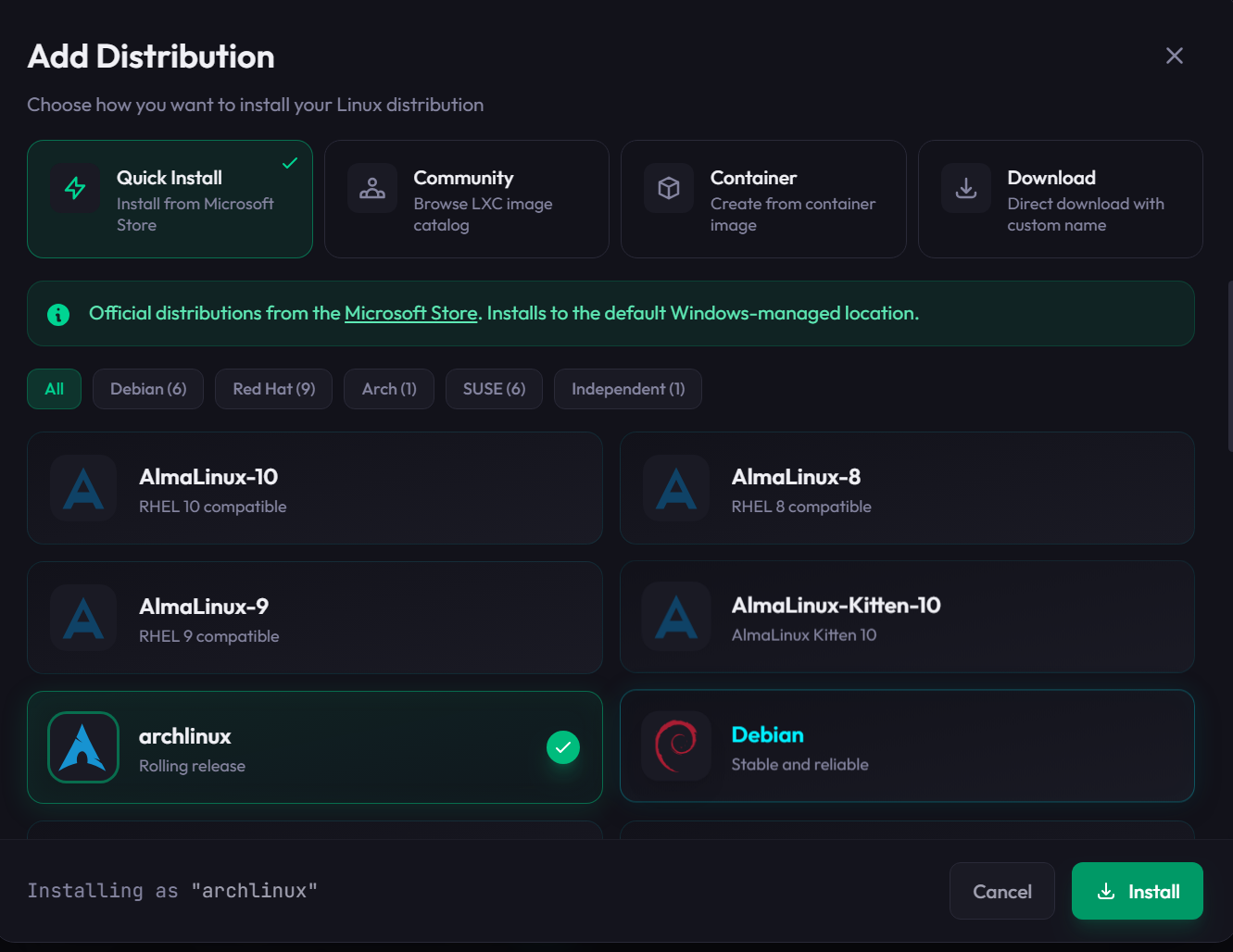
Or via command line:
wsl --install -d archlinuxCritical First Step: Create a User
The Microsoft Store Arch image boots as root with no regular user. You must create one—makepkg (needed for AUR packages) refuses to run as root.
# Create user with wheel group (for sudo)
useradd -m -s /bin/bash -G wheel yourname
passwd yourname

# Enable wheel group sudo (uncomment NOPASSWD line)
sed -i 's/^# %wheel ALL=(ALL:ALL) NOPASSWD: ALL/%wheel ALL=(ALL:ALL) NOPASSWD: ALL/' /etc/sudoers

# Set as default WSL user
cat >> /etc/wsl.conf << 'EOF'
[user]
default=yourname
EOF
Restart WSL to apply:
wsl --terminate archlinuxStep 1: Install Base Development Tools
sudo pacman -Syu --noconfirm base-devel gitStep 2: Install yay (AUR Helper)
The xrdp package is in the AUR, not official repos. Install yay to manage AUR packages:
cd /tmp
git clone https://aur.archlinux.org/yay.git
cd yay
makepkg -si --noconfirm
Step 3: Install XFCE Desktop
sudo pacman -S --noconfirm xfce4 xfce4-goodiesStep 4: Install XRDP from AUR
yay -S --noconfirm xrdp xorgxrdpThis builds and installs xrdp from the AUR.
Step 5: Configure XRDP
Change the Port
sudo sed -i 's/^port=3389/port=3390/' /etc/xrdp/xrdp.iniFix X11 Socket (If Needed)
[ -L /tmp/.X11-unix ] && sudo rm /tmp/.X11-unix
sudo mkdir -p /tmp/.X11-unix && sudo chmod 1777 /tmp/.X11-unix
Step 6: Create xinitrc
Arch uses .xinitrc, not .xsession—this is critical:
echo "exec startxfce4" > ~/.xinitrc
chmod +x ~/.xinitrc
The exec is important for proper session handling.
Step 7: Enable and Start XRDP
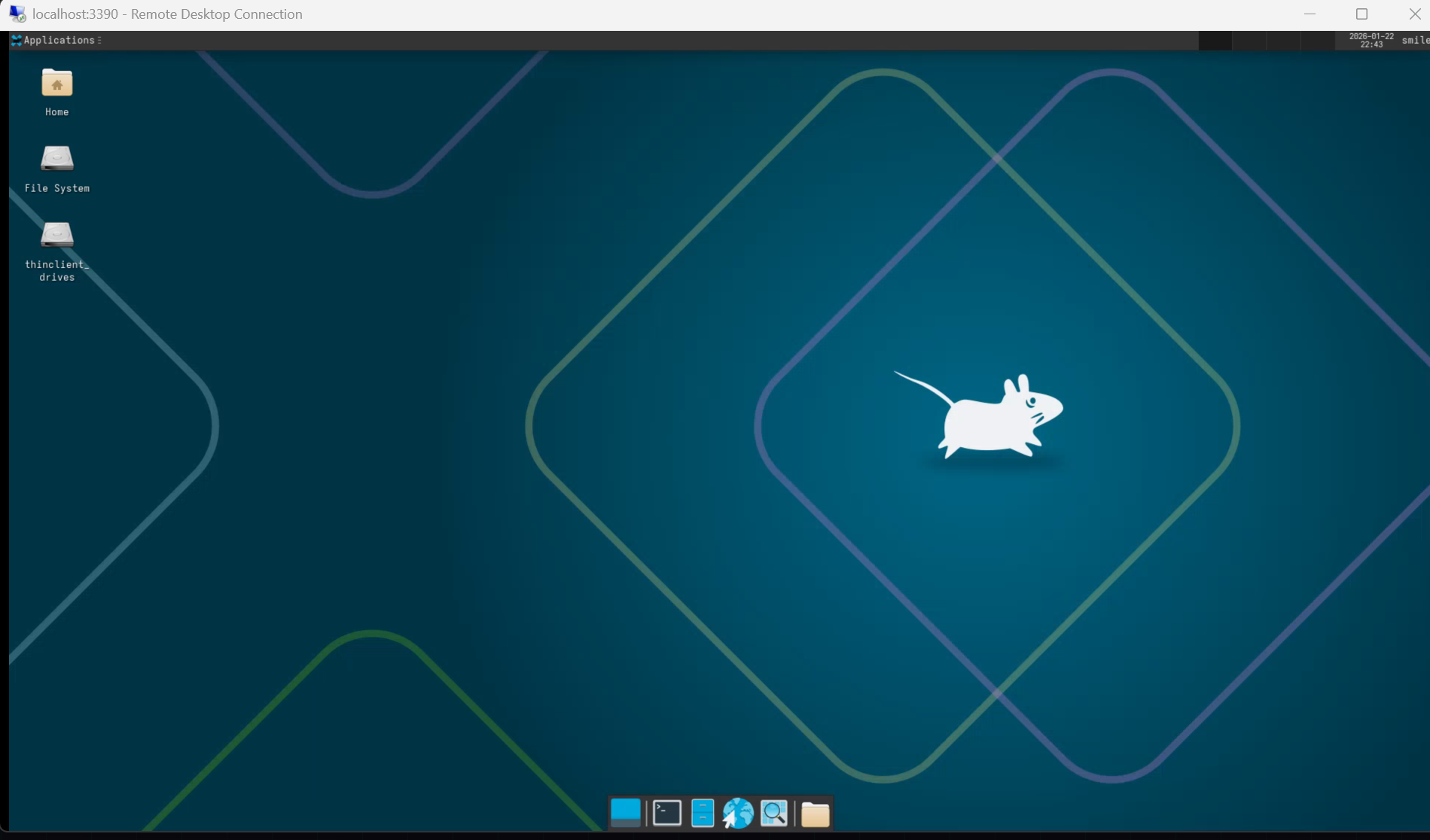
sudo systemctl enable xrdp xrdp-sesman --nowStep 8: Connect
- Open Remote Desktop Connection on Windows (Win+R, type
mstsc) - Enter
localhost:3390 - Log in with your Arch username and password
Quick Reference
# As root, create user first
useradd -m -s /bin/bash -G wheel yourname && passwd yourname
sed -i 's/^# %wheel ALL=(ALL:ALL) NOPASSWD: ALL/%wheel ALL=(ALL:ALL) NOPASSWD: ALL/' /etc/sudoers
echo -e "[user]\ndefault=yourname" >> /etc/wsl.conf
# Then: wsl --terminate Arch

# As regular user
sudo pacman -Syu --noconfirm base-devel git
cd /tmp && git clone https://aur.archlinux.org/yay.git && cd yay && makepkg -si --noconfirm
sudo pacman -S --noconfirm xfce4 xfce4-goodies
yay -S --noconfirm xrdp xorgxrdp
sudo sed -i 's/^port=3389/port=3390/' /etc/xrdp/xrdp.ini
echo "exec startxfce4" > ~/.xinitrc
sudo systemctl enable xrdp xrdp-sesman --now

# Connect: mstsc → localhost:3390
Arch-Specific Gotchas
| Issue | Solution |
|---|---|
| Running as root | Create a regular user (Step: Create a User) |
| makepkg refuses to run | Don't run as root—use regular user |
| xrdp package not found | It's in AUR—install yay first |
| Session drops immediately | Use .xinitrc not .xsession, include exec |
| Black screen | Check X11 socket symlink, verify .xinitrc exists |
Keeping Arch Updated
# Update everything (including AUR packages)
yay -Syu

# Just official repos
sudo pacman -Syu
Troubleshooting
For deeper issues—black screens, connection problems, display errors—see the comprehensive WSL2 Desktop Troubleshooting Guide.
This Series
- Part 1: Running Linux GUI Apps with WSLg
- Part 2: Ubuntu Desktop with XRDP
- Part 3: Fedora Desktop with XRDP
- Part 4: Kali Linux Desktop with Win-KeX
- Part 5: Arch Linux Desktop with XRDP — You are here
- Part 6: openSUSE Desktop with XRDP
- Part 7: Alpine Linux Desktop with XRDP
- Part 8: WSL2 Desktop Troubleshooting Guide