
Want to run a full Linux desktop on Windows? Not just individual apps, but the complete experience—panels, file manager, system settings, and proper window management. This guide shows you how to set up Ubuntu with XRDP on WSL2.
Why This Guide Exists
I wrote this series while my RTX 5090 was off being RMA'd (charred power cable—don't ask). Without GPU acceleration, I needed a reliable way to run Linux desktops over RDP. After testing every major distro, Ubuntu with XFCE emerged as the most straightforward setup. GNOME is harder without GPU acceleration, but XFCE and MATE work brilliantly.
If you're after a polished, feature-rich experience, check out Kali Linux with Win-KeX—it surprised me with how complete it feels. For raw speed on minimal hardware, Alpine Linux is remarkably snappy.
Why XRDP Instead of WSLg?
WSLg is brilliant for running individual Linux apps on Windows. But full desktop environments don't work well with it:
- WSLg remotes individual windows, not entire desktops
- Desktop environments expect to own the display
- Every window update goes through separate RDP channels
- Session management breaks in confusing ways
XRDP works differently. It creates a virtual display that the desktop environment fully controls, then streams the entire desktop as a single RDP session. You connect using Windows' built-in Remote Desktop client—no extra software needed.

Prerequisites
- Windows 10 (version 2004+) or Windows 11
- WSL2 installed and working
- Ubuntu installed from Microsoft Store or WSL UI
Installing Ubuntu
The easiest way to install Ubuntu is through WSL UI—our open-source WSL management tool. It handles the Microsoft Store integration and lets you manage multiple distros visually.
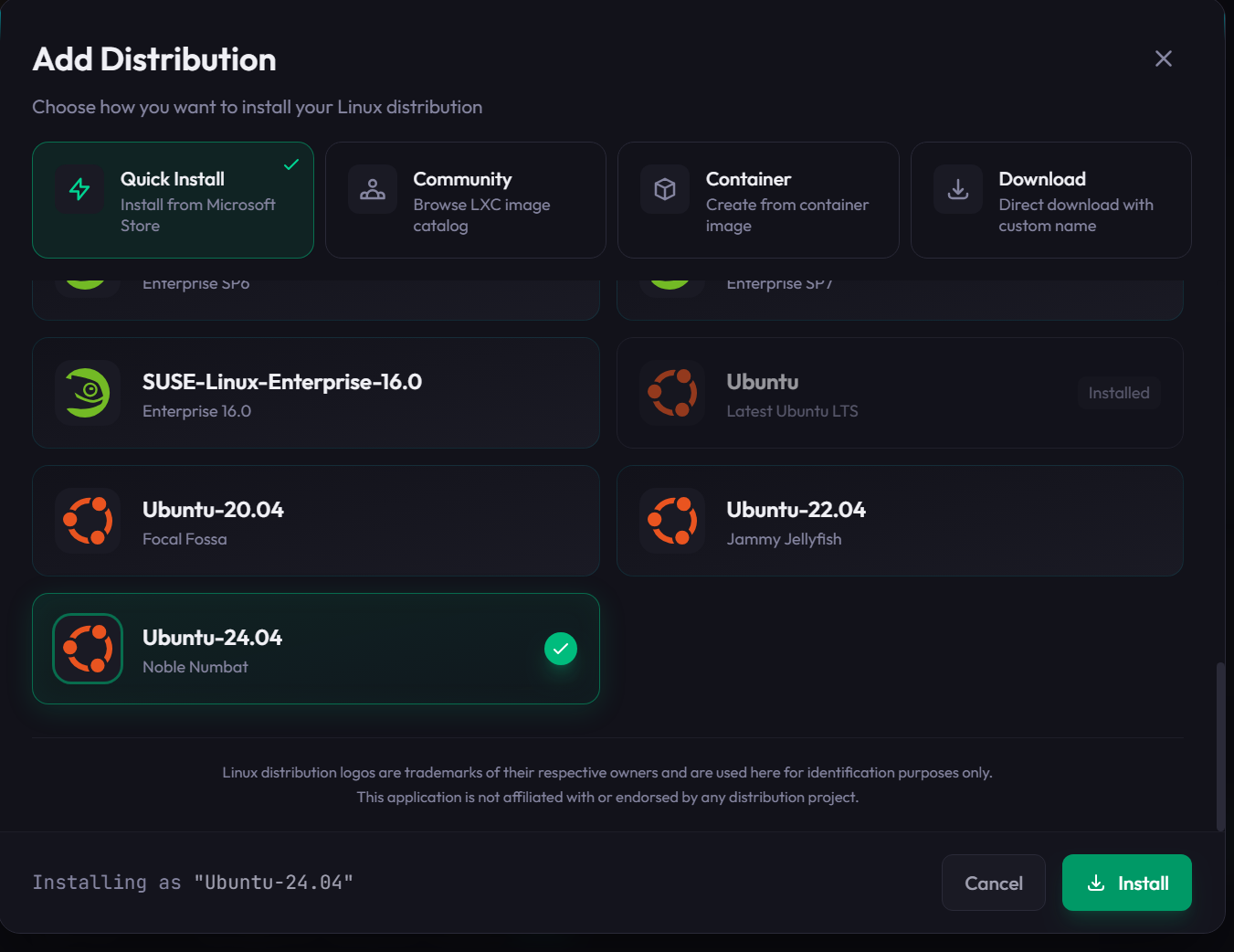
Or install via command line:
wsl --install -d UbuntuChoosing a Desktop Environment
Desktop environments vary significantly in resource usage. For WSL2, lighter is generally better—you're sharing resources with Windows.
| Desktop | Install Size | RAM (Idle) | Best For | Jump To |
|---|---|---|---|---|
| XFCE | ~500 MB | ~300 MB | Best balance for WSL2 | Recommended |
| MATE | ~700 MB | ~450 MB | Traditional GNOME 2 feel | |
| LXQt | ~400 MB | ~200 MB | Minimal resources | |
| KDE Plasma | ~1.5 GB | ~500 MB | Customisation enthusiasts | |
| GNOME | ~2.5 GB | ~800 MB | Modern, polished | Needs workaround |
My recommendation: Start with XFCE. It's responsive over RDP, lightweight, and just works.
Step 1: Install Your Desktop
XFCE
sudo apt update
sudo apt install xfce4 xfce4-goodies -y
For the lightest possible install:
sudo apt install --no-install-recommends xfce4 -yMATE
sudo apt update
sudo apt install mate-desktop-environment -y
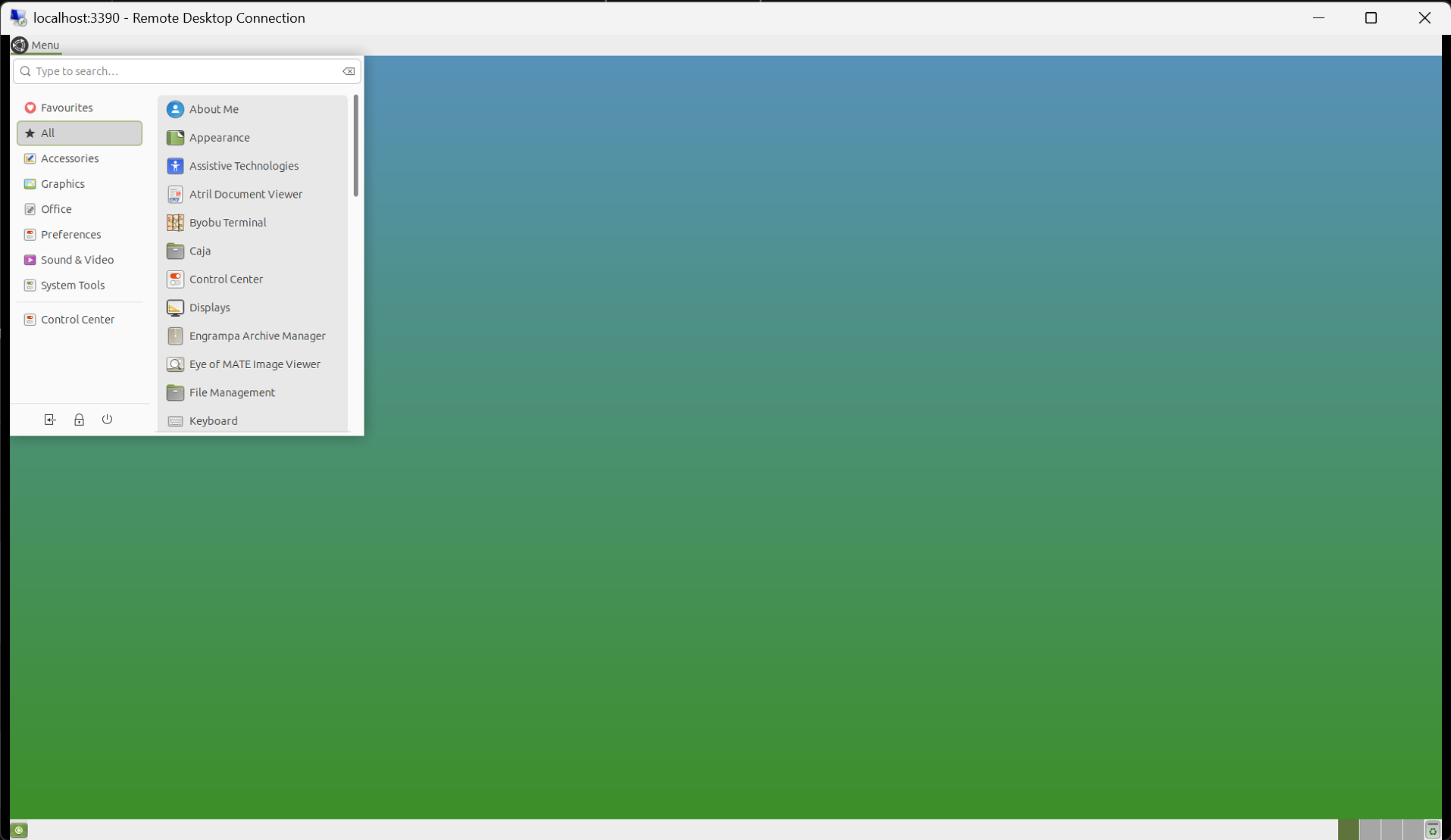
Note: On first login you may see a panel error about "IndicatorAppletComplete". This is harmless—click "Delete" to dismiss. The indicator applet expects system tray services that aren't available in XRDP sessions.
LXQt
sudo apt update
sudo apt install lxqt -y
Warning: LXQt installs ConnMan (Connection Manager), which conflicts with WSL's mirrored networking mode. If you use
networkingMode=mirroredin your.wslconfig, ConnMan will break networking across all your WSL distros. After installing LXQt, disable it immediately:bashsudo systemctl disable --now connman && sudo systemctl mask connmanSee Network Managers Breaking WSL Mirrored Networking for details.
KDE Plasma
sudo apt update
sudo apt install kde-plasma-desktop -y
Note on KDE's future: KDE announced in late 2025 that Plasma 6.8 will be Wayland-only. XRDP requires X11, so for long-term setups, XFCE or MATE are safer choices. The X11 session still works today with
startplasma-x11.
GNOME
sudo apt update
# Minimal GNOME
sudo apt install ubuntu-desktop-minimal -y

# Full Ubuntu Desktop
sudo apt install ubuntu-desktop -y
Warning: GNOME Shell requires 3D acceleration which XRDP can't provide. You'll need to use GNOME Flashback instead—see GNOME Desktop Not Working for configuration steps. For a smoother experience, XFCE or MATE are recommended.
Step 2: Install XRDP
sudo apt install xrdp -yStep 3: Change the Port
XRDP defaults to port 3389, which conflicts with Windows Remote Desktop. Change it:
sudo sed -i 's/^port=3389/port=3390/' /etc/xrdp/xrdp.iniStep 4: Configure Your Session
Tell XRDP which desktop to start by creating ~/.xsession:
# For XFCE
echo "startxfce4" > ~/.xsession

# For MATE
echo "mate-session" > ~/.xsession

# For LXQt
echo "startlxqt" > ~/.xsession

# For GNOME / Ubuntu Desktop (use gnome-session --session=gnome-flashback-metacity)
echo "gnome-session" > ~/.xsession

# For KDE Plasma (X11)
echo "startplasma-x11" > ~/.xsession
Step 5: Enable systemd (If Needed)
Ubuntu 24.04 and later have systemd enabled by default. Check yours:
cat /proc/1/commIf it shows init instead of systemd, enable it:
sudo tee -a /etc/wsl.conf << 'EOF'
[boot]
systemd=true
EOF
Then restart WSL from PowerShell:
wsl --shutdownStep 6: Start XRDP
sudo systemctl enable xrdp
sudo systemctl start xrdp
Step 7: Connect
- Open Remote Desktop Connection on Windows (Win+R, type
mstsc) - Enter
localhost:3390 - Click Connect
- Log in with your WSL username and password
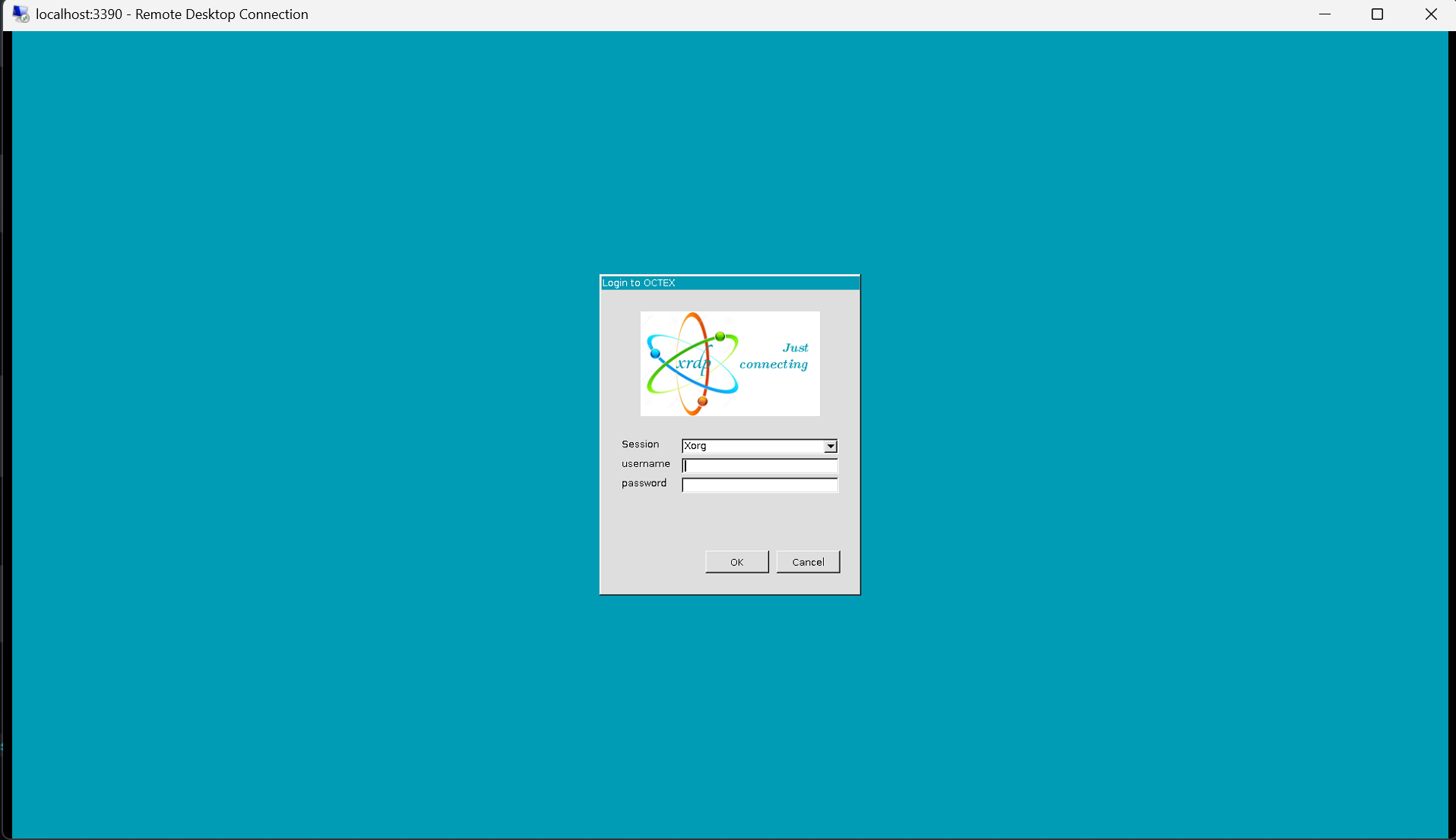
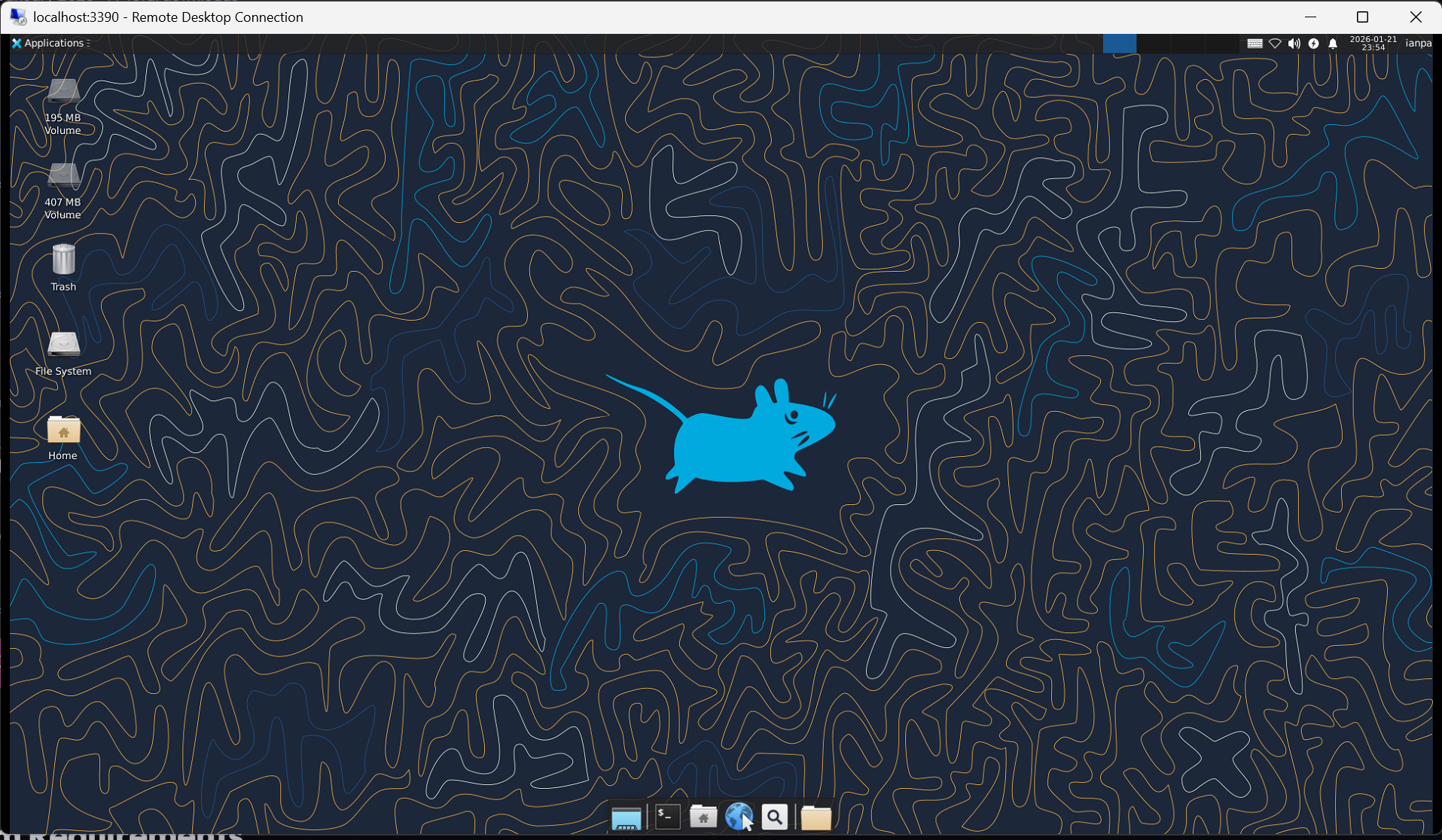
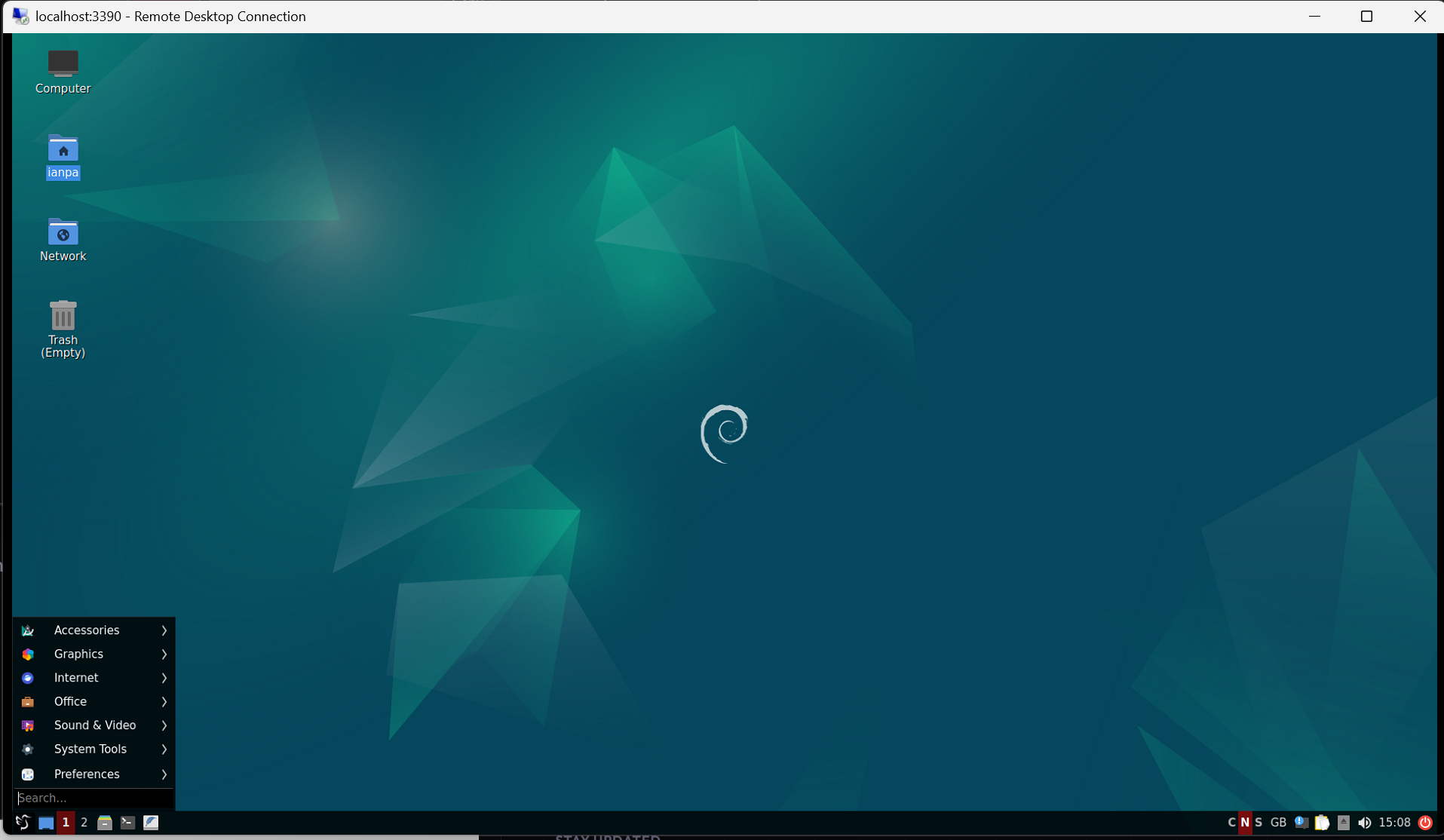
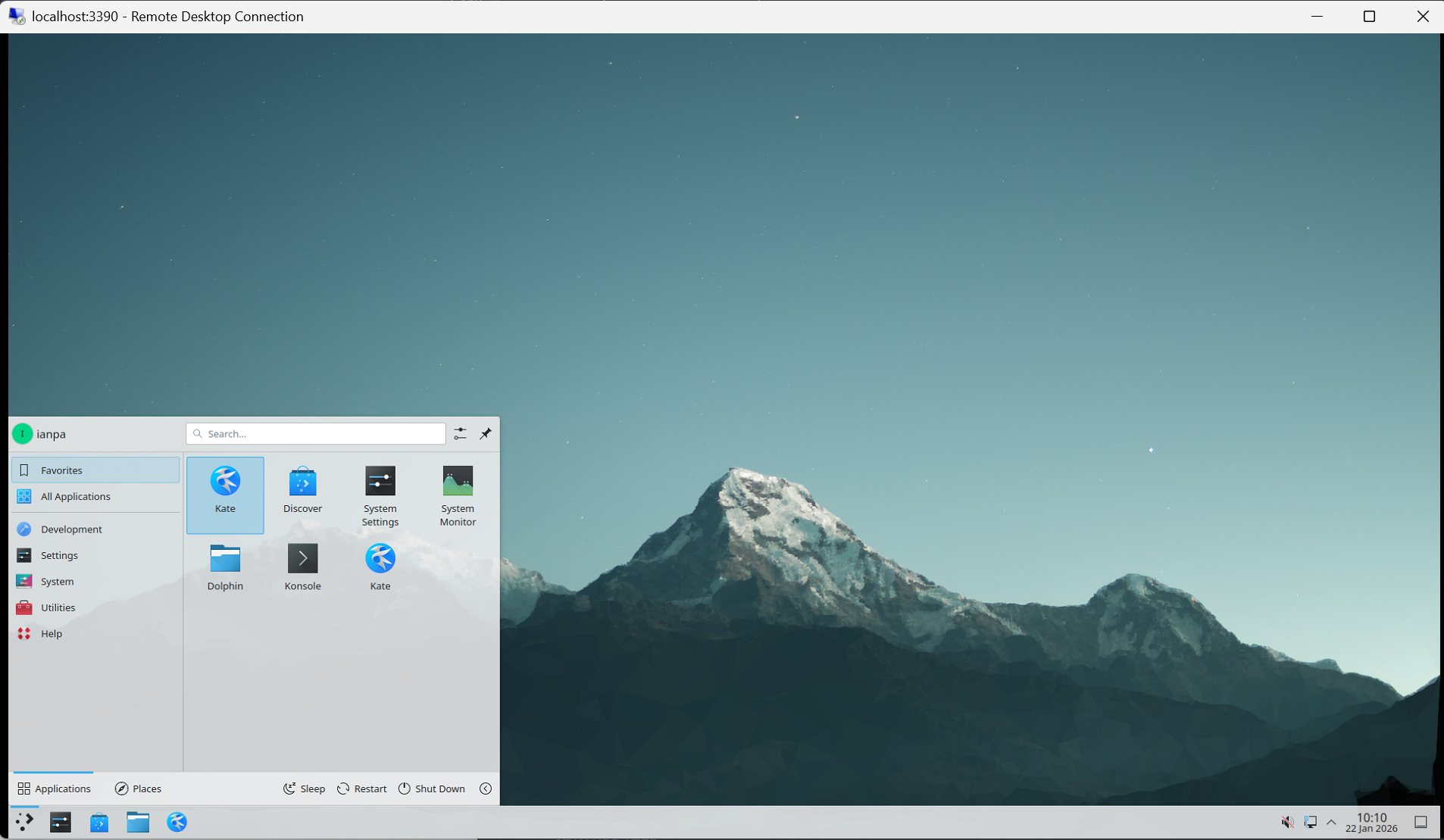
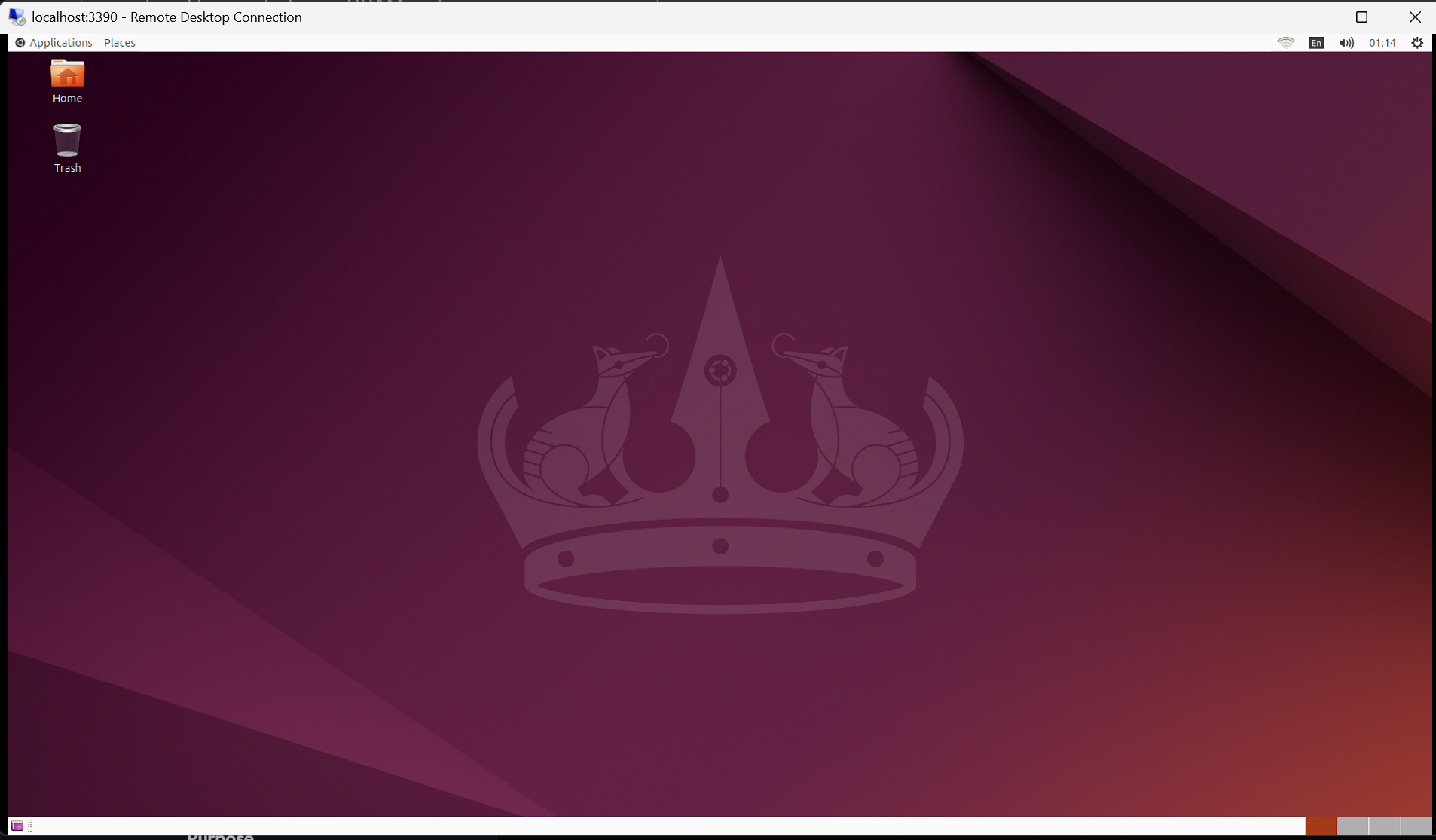
You should see your full Linux desktop:
XFCE
MATE
LXQt
KDE Plasma
Ubuntu Desktop (GNOME Flashback)
Performance Tips
RDP Display Settings
Before connecting, click Show Options in Remote Desktop Connection:
- Display tab: Start at 1920x1080 or your monitor size
- Experience tab: Set to LAN for best quality
- Color depth: 32-bit for quality, 16-bit for performance
Inside Linux
Disable compositing and desktop effects:
- XFCE: Settings → Window Manager Tweaks → Compositor → disable
- KDE: System Settings → Display → Compositor → disable
- GNOME: Install
gnome-tweaksand disable animations
Memory Limits
Control WSL2 memory usage by creating C:\Users\YourName\.wslconfig:
[wsl2]
memory=8GB
processors=4
swap=2GB
Restart WSL after changes: wsl --shutdown
Quick Reference
# Complete Ubuntu XFCE setup
sudo apt update
sudo apt install xfce4 xfce4-goodies xrdp -y
sudo sed -i 's/^port=3389/port=3390/' /etc/xrdp/xrdp.ini
echo "startxfce4" > ~/.xsession
sudo systemctl enable xrdp --now

# Connect: mstsc → localhost:3390
Troubleshooting
If things go wrong—black screens, connection refused, authentication failures—see the comprehensive WSL2 Desktop Troubleshooting Guide.
This Series
- Part 1: Running Linux GUI Apps with WSLg
- Part 2: Ubuntu Desktop with XRDP — You are here
- Part 3: Fedora Desktop with XRDP
- Part 4: Kali Linux Desktop with Win-KeX
- Part 5: Arch Linux Desktop with XRDP
- Part 6: openSUSE Desktop with XRDP
- Part 7: Alpine Linux Desktop with XRDP
- Part 8: WSL2 Desktop Troubleshooting Guide