
Kali Linux offers the richest desktop experience of any distro on WSL2—and it's not even close. While other distros require manual XRDP configuration, Kali's Win-KeX (Windows + Kali Desktop EXperience) handles everything: desktop environment, remote display, clipboard sync, audio, and shared drives. If you want a polished Linux desktop on Windows, start here.
Why Kali Gave the Best Experience
After testing Ubuntu, Fedora, Arch, openSUSE, and Alpine (while my GPU was off being RMA'd—charred 5090 power cable), Kali's Win-KeX surprised me with how complete it feels. ESM mode delivers:
- Native clipboard integration—copy/paste just works
- Audio passthrough—sound from Linux apps plays on Windows
- Shared drives—access Windows files seamlessly
- Better RDP performance than VNC alternatives
- One-command setup—no manual XRDP configuration
For security professionals, pentesters, or anyone wanting a capable Linux workstation, Kali on WSL2 is compelling.
Prerequisites
- Windows 10 (version 2004+) or Windows 11
- WSL2 installed and working
- Kali Linux from Microsoft Store or WSL UI
Installing Kali Linux
Install Kali through WSL UI for easy management, or via the Microsoft Store.
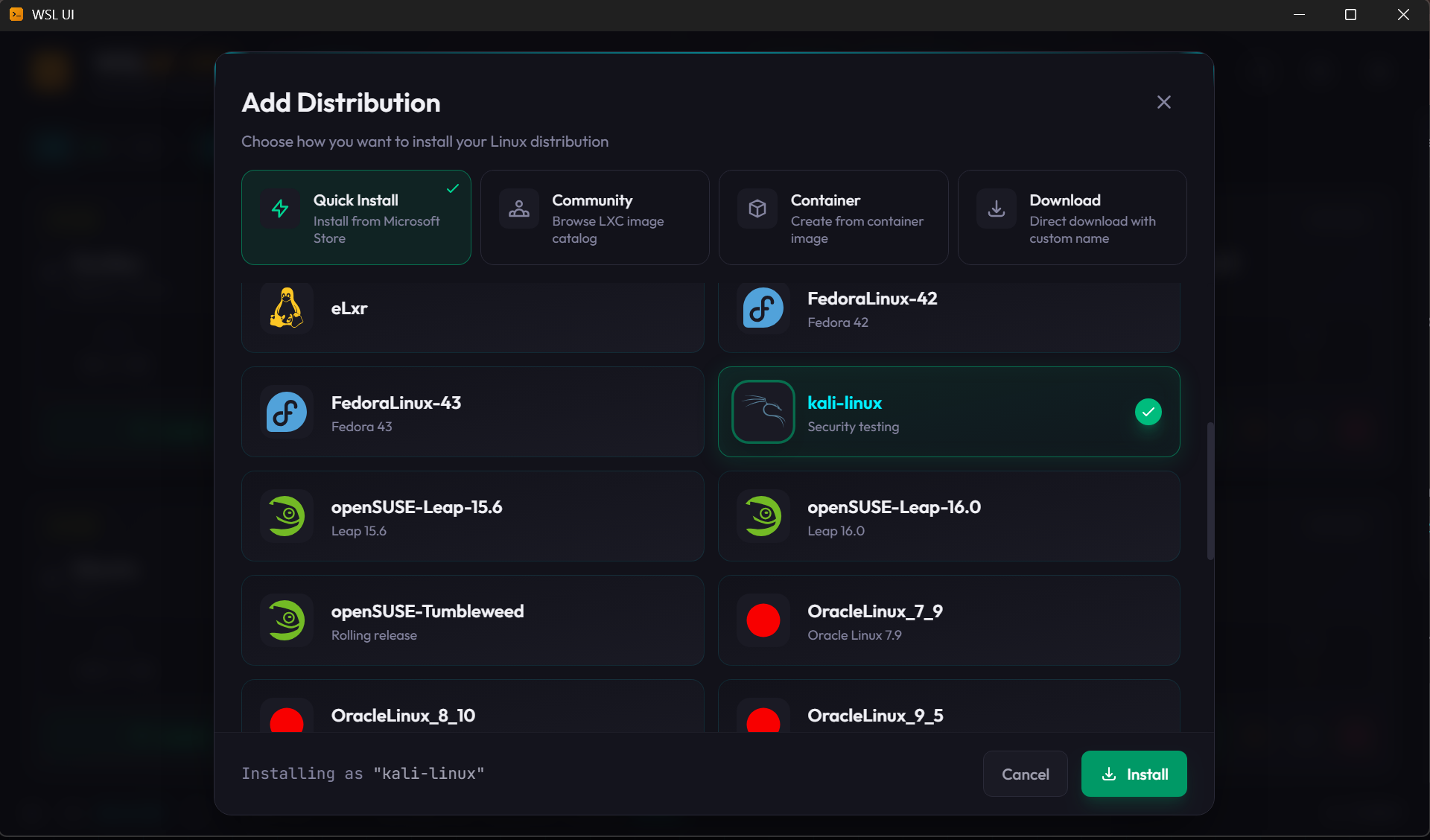
Or via command line:
wsl --install -d kali-linuxUnderstanding Win-KeX Modes
Win-KeX offers three ways to run Kali's desktop:
| Mode | Command | Technology | Best For |
|---|---|---|---|
| Window | kex --win -s | VNC | Quick testing, basic usage |
| Seamless | kex --sl -s | VNC | Individual apps on Windows desktop |
| ESM | kex --esm -s | RDP | Full desktop (recommended) |

ESM (Enhanced Session Mode) is the best option. It uses RDP like Hyper-V enhanced sessions, providing clipboard, audio, shared drives, and significantly better performance than VNC.
Step 1: Install Win-KeX
sudo apt update
sudo apt install kali-win-kex -y
This installs everything needed: XFCE desktop, XRDP, TigerVNC, and the kex management scripts.
Step 2: Fix X11 Socket (Critical)
WSLg creates a symlink at /tmp/.X11-unix that breaks Win-KeX ESM mode. Fix it before your first launch:
sudo rm -f /tmp/.X11-unix
sudo mkdir -p /tmp/.X11-unix
sudo chmod 1777 /tmp/.X11-unix
Why this happens: WSL's init creates
/tmp/.X11-unix → /mnt/wslg/.X11-unixfor WSLg. When you run ESM (which uses XRDP), the symlink points nowhere useful, causing black screens. Win-KeX's stop script (kex --stop) also restores the symlink, so you may need to fix it again after stopping/starting.
Step 3: Launch ESM Mode
kex --esm -sThe -s flag enables sound passthrough.
For NAT networking mode (if mirrored doesn't work):
kex --esm --ip -sWindows Remote Desktop will launch automatically and connect to your Kali desktop.
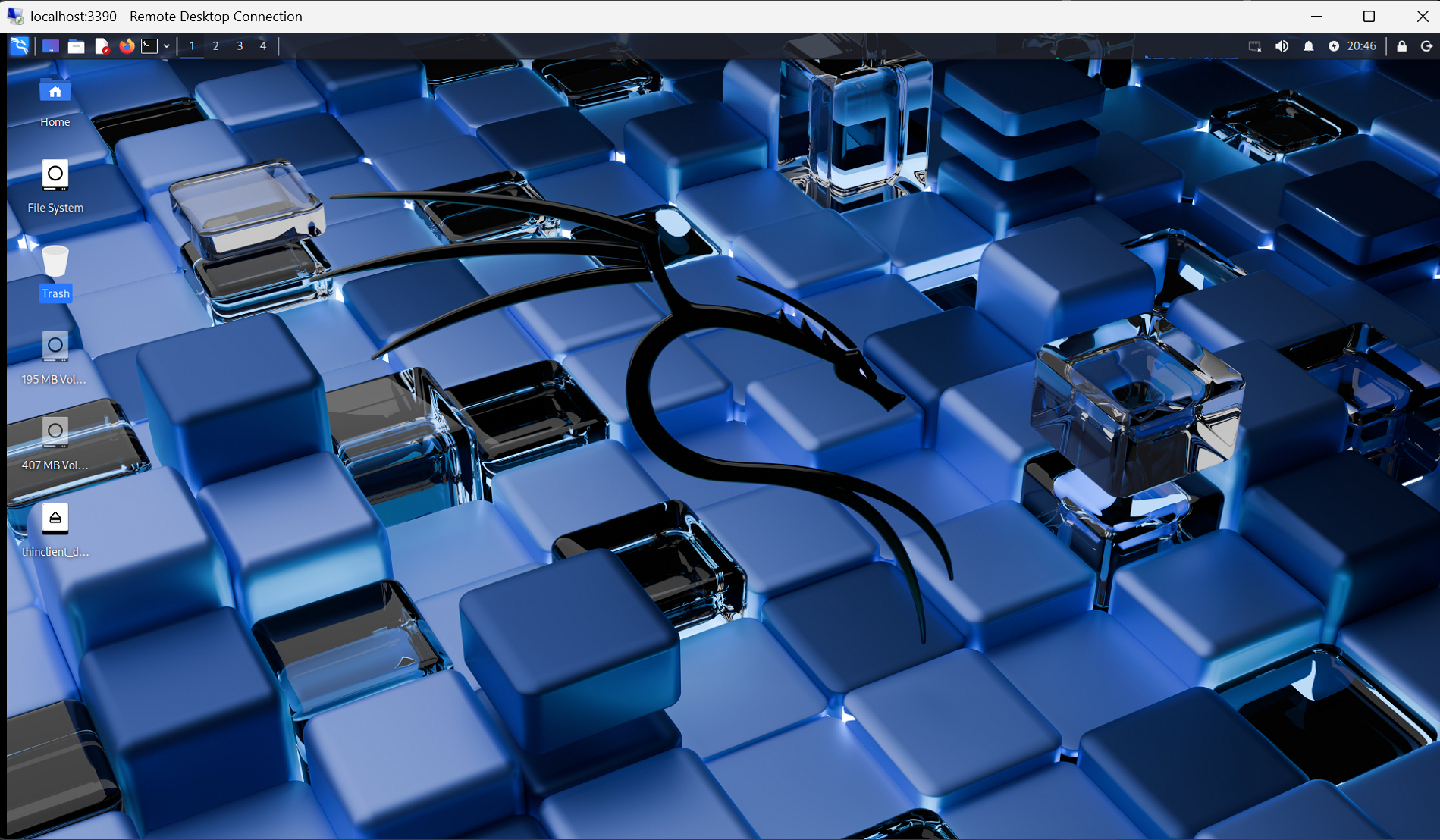
Other Win-KeX Modes
Window Mode (VNC)
Opens the full desktop in a VNC window:
kex --win -sSimpler but lacks ESM's clipboard and audio integration.
Seamless Mode (VNC)
Runs individual Kali apps directly on your Windows desktop:
kex --sl -sUseful for running specific tools without a full desktop.
Managing Win-KeX Sessions
# Check status
kex --status

# Stop all sessions
kex --stop

# Kill stuck sessions
kex --kill
Troubleshooting
Black Screen After Login
The X11 socket symlink is the most common cause. Fix it:
sudo rm -f /tmp/.X11-unix
sudo mkdir -p /tmp/.X11-unix
sudo chmod 1777 /tmp/.X11-unix
Then restart: kex --kill && kex --esm -s
ESM Not Connecting
Try with explicit IP (for NAT networking):
kex --esm --ip -sSound Not Working
Ensure you're using the -s flag:
kex --esm -s"Cannot Open Display" Errors
Your DISPLAY variable may point to WSLg instead of the XRDP session. Kill everything and restart:
kex --kill
kex --esm -s
Manual XRDP Setup (Alternative)
If you prefer manual configuration over Win-KeX:
sudo apt install kali-desktop-xfce xrdp -y
sudo sed -i 's/^port=3389/port=3390/' /etc/xrdp/xrdp.ini
echo "startxfce4" > ~/.xsession
sudo systemctl enable xrdp --now
Connect with mstsc → localhost:3390
Quick Reference
# Install Win-KeX
sudo apt update && sudo apt install kali-win-kex -y

# Fix X11 socket
sudo rm -f /tmp/.X11-unix && sudo mkdir -p /tmp/.X11-unix && sudo chmod 1777 /tmp/.X11-unix

# Launch ESM (recommended)
kex --esm -s

# With NAT networking
kex --esm --ip -s

# Stop session
kex --stop
Kali-Specific Tips
| Task | Command |
|---|---|
| Update all tools | sudo apt update && sudo apt full-upgrade |
| Install tool categories | sudo apt install kali-tools-web |
| List all metapackages | apt-cache search kali-tools |
| Switch to root | sudo -i (Kali allows this by default) |
This Series
- Part 1: Running Linux GUI Apps with WSLg
- Part 2: Ubuntu Desktop with XRDP
- Part 3: Fedora Desktop with XRDP
- Part 4: Kali Linux Desktop with Win-KeX — You are here
- Part 5: Arch Linux Desktop with XRDP
- Part 6: openSUSE Desktop with XRDP
- Part 7: Alpine Linux Desktop with XRDP
- Part 8: WSL2 Desktop Troubleshooting Guide