
Alpine Linux is the speed demon of this series. With musl libc instead of glibc and a minimal base, it boots faster and uses less RAM than any other distro tested. The trade-off is more manual setup—OCI images are barebones, OpenRC doesn't play nice with WSL, and some packages need extra configuration. But if you want the fastest possible Linux desktop on WSL2, Alpine delivers.
Why Alpine on WSL2?
- Tiny footprint—minimal base image, fast boots
- musl libc—smaller, simpler C library
- apk package manager—fast and efficient
- Security-focused—used heavily in containers
- Resource efficient—more RAM for your actual work
After testing while my 5090 was being RMA'd (charred power cable saga), Alpine was noticeably snappier than the others—especially for basic desktop tasks.
Prerequisites
- Windows 10 (version 2004+) or Windows 11
- WSL2 installed and working
- Alpine Linux from OCI image or WSL UI
Installing Alpine
Alpine is available via OCI container images. Install through WSL UI which can import OCI images directly.
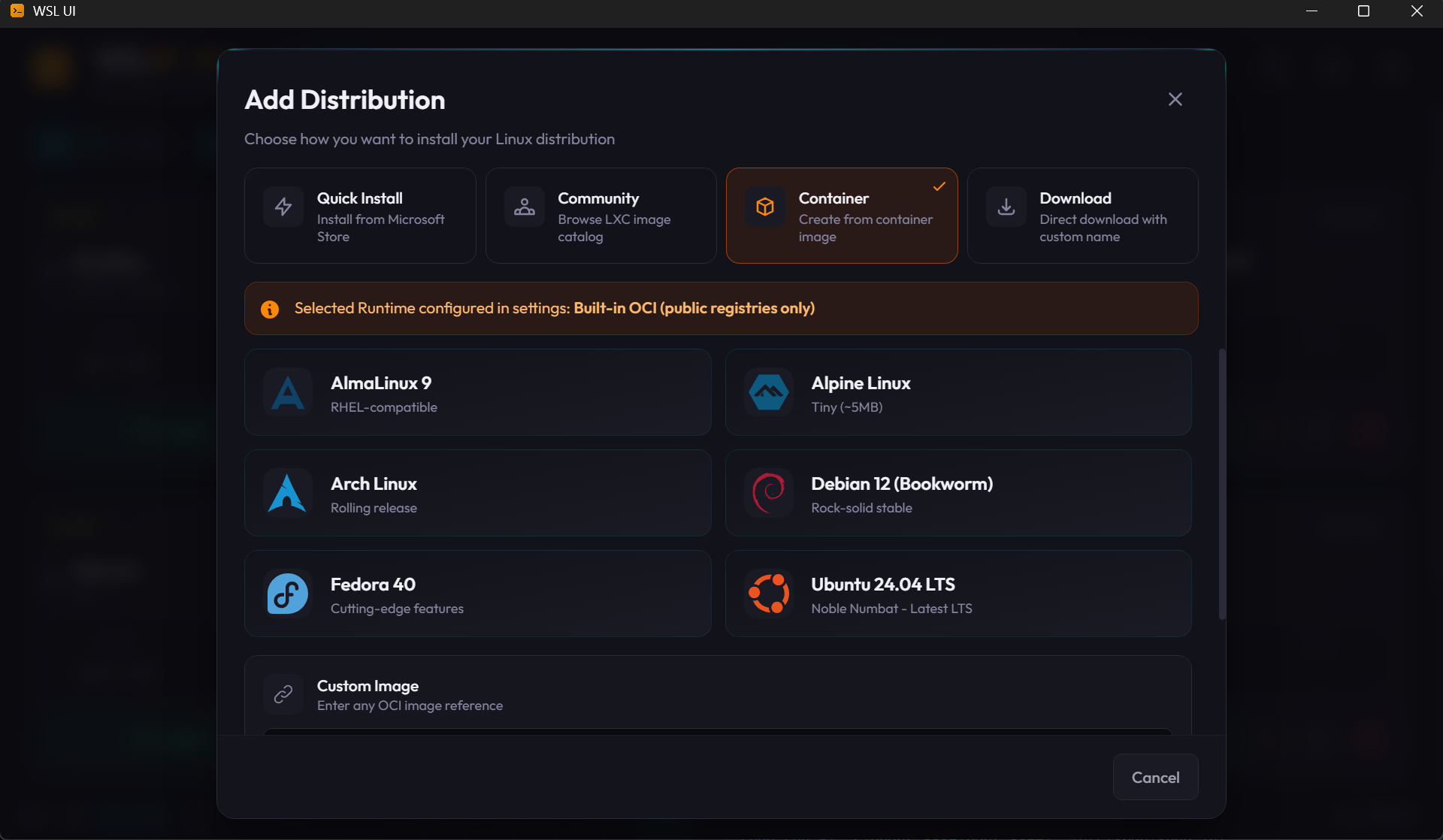
Critical: OCI Images Are Minimal
Alpine OCI images boot as root only with almost nothing installed—no sudo, no regular user, no OpenRC. You'll build everything up from scratch.
Step 1: Create a User
# Install sudo
apk add sudo

# Create user with wheel group
adduser -D -s /bin/sh -G wheel yourname
echo "yourname:yourpassword" | chpasswd

# Enable wheel group sudo
echo "%wheel ALL=(ALL) NOPASSWD: ALL" >> /etc/sudoers

# Set as default WSL user
cat > /etc/wsl.conf << 'EOF'
[user]
default=yourname
EOF
Restart WSL:
wsl --terminate alpineStep 2: Install XFCE, XRDP, and Xorg
Critical: Unlike other distros, Alpine doesn't pull in xorg-server as a dependency. You must install it explicitly:
sudo apk add xfce4 xrdp xorgxrdp xorg-serverWithout xorg-server, XRDP fails with "No such file or directory" for /usr/libexec/Xorg.
Step 3: Configure XRDP
Change the Port
sudo sed -i 's/^port=3389/port=3390/' /etc/xrdp/xrdp.iniStep 4: Create xinitrc
Alpine uses .xinitrc like Arch:
echo "exec startxfce4" > ~/.xinitrc
chmod +x ~/.xinitrc
Step 5: Start XRDP (OpenRC Workaround)
OpenRC doesn't work in WSL because the system wasn't booted by it. You'll see errors like:
You are attempting to run an openrc service on a system which openrc did not boot.Start XRDP directly instead:
sudo /usr/sbin/xrdp-sesman
sudo /usr/sbin/xrdp
For automatic startup, add a boot command to /etc/wsl.conf:
sudo tee /etc/wsl.conf << 'EOF'
[user]
default=yourname

[boot]
command=/usr/sbin/xrdp-sesman; /usr/sbin/xrdp
EOF
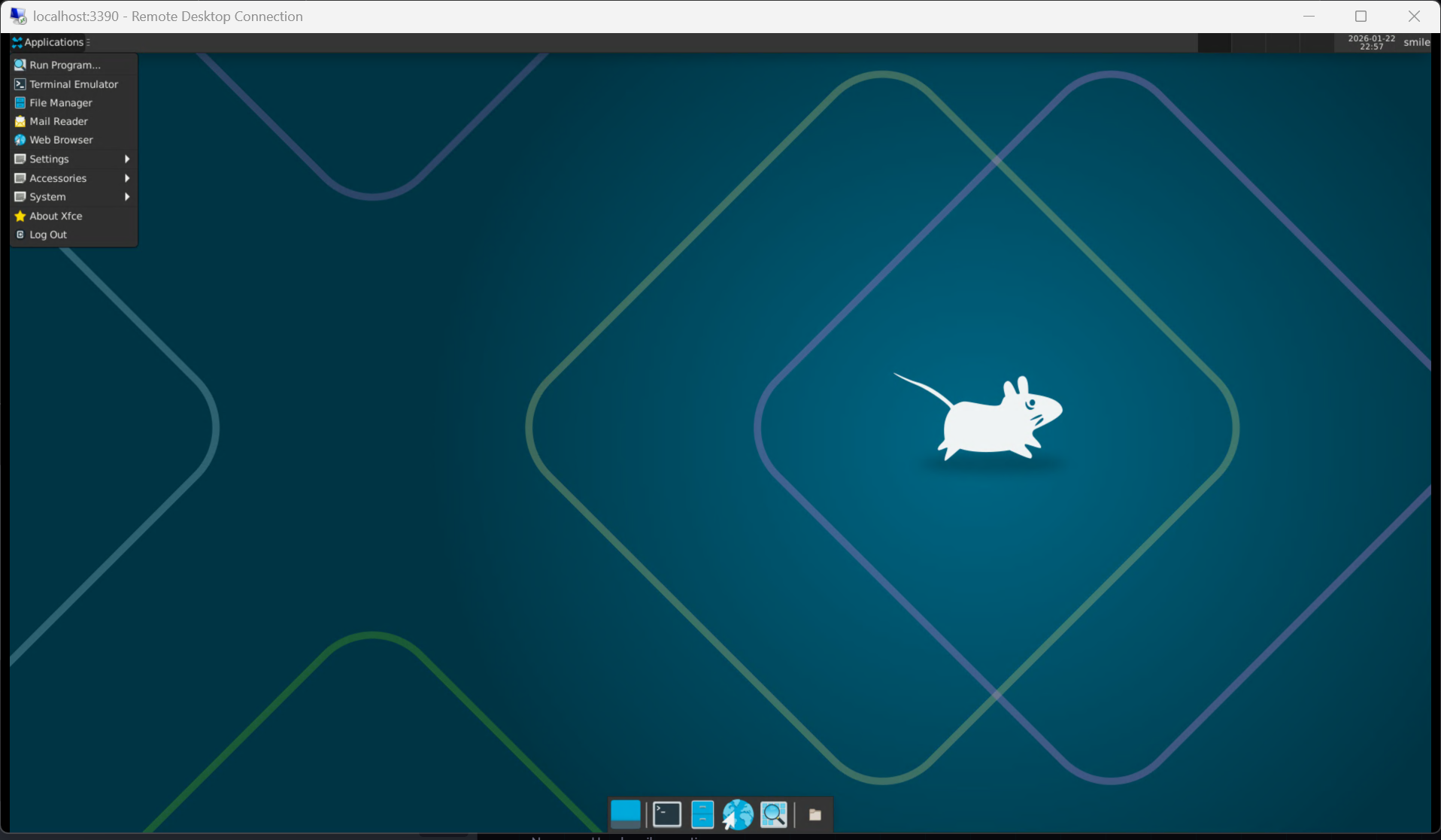
Step 6: Connect
- Open Remote Desktop Connection on Windows (Win+R, type
mstsc) - Enter
localhost:3390 - Log in with your Alpine username and password
Installing Chromium
Alpine doesn't have Google Chrome, but Chromium works well:
# Install Chromium and D-Bus (required)
sudo apk add chromium dbus dbus-x11

# Start D-Bus daemon
sudo mkdir -p /run/dbus
sudo dbus-daemon --system --fork
Important: GPU acceleration causes blank screens over RDP. Launch with:
chromium-browser --disable-gpu --disable-software-rasterizerFrom Windows terminal to XRDP desktop:
# Find your display number
ps aux | grep Xorg
# Look for :10, :11, etc.

# Launch on that display
DISPLAY=:11 chromium-browser --disable-gpu --disable-software-rasterizer
Quick Reference
# As root initially
apk add sudo
adduser -D -s /bin/sh -G wheel yourname
echo "yourname:password" | chpasswd
echo "%wheel ALL=(ALL) NOPASSWD: ALL" >> /etc/sudoers
cat > /etc/wsl.conf << 'EOF'
[user]
default=yourname
[boot]
command=/usr/sbin/xrdp-sesman; /usr/sbin/xrdp
EOF
# Then: wsl --terminate alpine

# As regular user
sudo apk add xfce4 xrdp xorgxrdp xorg-server
sudo sed -i 's/^port=3389/port=3390/' /etc/xrdp/xrdp.ini
echo "exec startxfce4" > ~/.xinitrc
chmod +x ~/.xinitrc

# Start manually (or restart WSL to use boot command)
sudo /usr/sbin/xrdp-sesman
sudo /usr/sbin/xrdp

# Connect: mstsc → localhost:3390
Alpine-Specific Gotchas
| Issue | Solution |
|---|---|
| Running as root only | Create user manually, install sudo |
| OpenRC commands fail | Use direct /usr/sbin/xrdp or boot command |
| "No such file /usr/libexec/Xorg" | Install xorg-server explicitly |
| Chromium blank screen | Use --disable-gpu --disable-software-rasterizer |
| Chromium D-Bus errors | Install dbus dbus-x11, start daemon |
| Uses ash not bash | Install bash if needed: apk add bash |
Why OpenRC Doesn't Work
WSL uses its own init system, not OpenRC. When you try rc-service:
You are attempting to run an openrc service on a
system which openrc did not boot.
You can workaround with touch /run/openrc/softlevel, but dependency issues (networking service) usually follow. The boot command approach is cleaner.
Troubleshooting
For deeper issues—black screens, connection problems—see the comprehensive WSL2 Desktop Troubleshooting Guide.
This Series
- Part 1: Running Linux GUI Apps with WSLg
- Part 2: Ubuntu Desktop with XRDP
- Part 3: Fedora Desktop with XRDP
- Part 4: Kali Linux Desktop with Win-KeX
- Part 5: Arch Linux Desktop with XRDP
- Part 6: openSUSE Desktop with XRDP
- Part 7: Alpine Linux Desktop with XRDP — You are here
- Part 8: WSL2 Desktop Troubleshooting Guide