
Fedora brings cutting-edge packages and a polished experience to WSL2. But setting up XRDP requires navigating a few Fedora-specific quirks—different package names, Xorg session configuration, and systemd race conditions. This guide covers everything you need to get a full Fedora desktop running over RDP.
Why Fedora on WSL2?
Fedora is ideal if you want:
- Latest software versions (often months ahead of Ubuntu)
- DNF package manager with excellent dependency resolution
- Enterprise Linux compatibility (RHEL/CentOS skills transfer)
- Modern defaults (systemd, Wayland-aware packages)
The trade-off is more manual configuration compared to Ubuntu—but that's what this guide is for.
Prerequisites
- Windows 10 (version 2004+) or Windows 11
- WSL2 installed and working
- Fedora 43+ from Microsoft Store (or WSL UI)
Installing Fedora
Fedora is available directly in the Microsoft Store. You can also install it through WSL UI for easier management of multiple distros.
Or via command line:
wsl --install -d FedoraLinux-43First Boot Issues
Fedora 43 may show this error on first launch:
wsl: Failed to start the systemd user session for 'username'. See journalctl for more details.This is a race condition during initial boot. The fix is simple:
wsl --shutdownThen start Fedora again. The user session will work on the second boot.
Step 1: Set a Password
The WSL installer creates your user without a password. XRDP requires one for authentication:
sudo passwd $(whoami)Fedora's password policy requires minimum 8 characters.
Step 2: Install XFCE Desktop
Fedora uses dnf and desktop groups have different names than Ubuntu:
# Install XFCE desktop group (lowercase, no spaces in Fedora 43+)
sudo dnf group install -y xfce-desktop
Note: In Fedora 43 with dnf5, some groups are hidden. List them with
dnf group list --hidden | grep -i xfce.
Step 3: Install XRDP with Xorg Support
sudo dnf install -y xrdp xorgxrdpThe xorgxrdp package is essential—it provides proper Xorg integration instead of the less stable Xvnc session.
Step 4: Configure XRDP
Change the Port
sudo sed -i 's/^port=3389/port=3390/' /etc/xrdp/xrdp.iniEnable Xorg Session
By default, Fedora's XRDP uses Xvnc which is less stable. Enable the Xorg session by uncommenting the [Xorg] section:
sudo sed -i '/^#\[Xorg\]$/,/^#code=/{s/^#//}' /etc/xrdp/xrdp.iniWhen you connect, select "Xorg" at the XRDP login screen—not Xvnc.
Step 5: Fix X11 Socket
WSLg creates a symlink at /tmp/.X11-unix pointing to /mnt/wslg/.X11-unix. When WSLg isn't fully active, this breaks XRDP's ability to create X server sockets.
# Check if it's a symlink
[ -L /tmp/.X11-unix ] && echo "Symlink exists - needs fixing"

# Fix it
[ -L /tmp/.X11-unix ] && sudo rm /tmp/.X11-unix
sudo mkdir -p /tmp/.X11-unix && sudo chmod 1777 /tmp/.X11-unix
For a permanent fix (survives reboots), add a boot command:
sudo tee /etc/wsl.conf << 'EOF'
[boot]
systemd=true
command=/bin/bash -c "[ -L /tmp/.X11-unix ] && rm /tmp/.X11-unix && mkdir -p /tmp/.X11-unix && chmod 1777 /tmp/.X11-unix"
EOF
Step 6: Create Session File
Fedora's XRDP requires the session file to be executable with a proper shebang:
cat > ~/.xsession << 'EOF'
#!/bin/bash
startxfce4
EOF
chmod +x ~/.xsession
Step 7: Disable Unnecessary Services
Fedora ships with many desktop services that aren't needed in WSL and consume CPU:
sudo systemctl disable --now \
  lightdm \
  NetworkManager \
  abrtd abrt-journal-core abrt-oops abrt-xorg \
  udisks2 upower rtkit-daemon accounts-daemon systemd-homed

sudo systemctl mask \
  lightdm NetworkManager \
  abrtd abrt-journal-core abrt-oops abrt-xorg \
udisks2 upower accounts-daemon| Service | Why Disable |
|---|---|
| lightdm | Display manager—using XRDP instead |
| NetworkManager | Can conflict with WSL mirrored networking |
| abrtd + related | Auto bug reporting—not needed |
| udisks2 | Disk manager—WSL handles this |
| upower | Power management—not needed in VM |
Step 8: Enable and Start XRDP
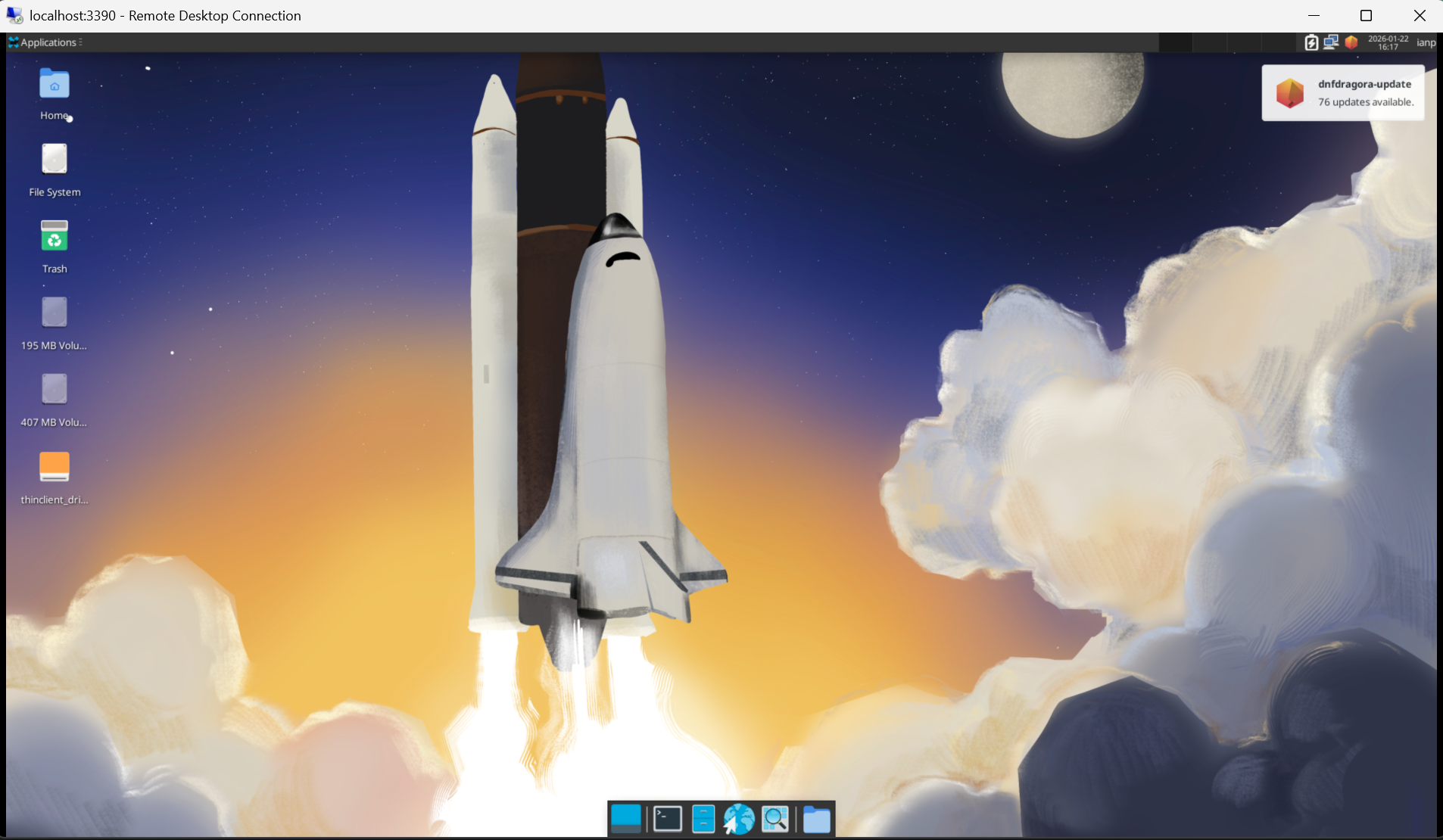
sudo systemctl enable xrdp xrdp-sesman --nowStep 9: Connect
- Open Remote Desktop Connection on Windows (Win+R, type
mstsc) - Enter
localhost:3390 - Important: Select "Xorg" session type (not Xvnc)
- Log in with your Fedora username and password
Quick Reference
# Complete Fedora XRDP setup
sudo passwd $(whoami)
sudo dnf group install -y xfce-desktop
sudo dnf install -y xrdp xorgxrdp
sudo sed -i 's/^port=3389/port=3390/' /etc/xrdp/xrdp.ini
sudo sed -i '/^#\[Xorg\]$/,/^#code=/{s/^#//}' /etc/xrdp/xrdp.ini
[ -L /tmp/.X11-unix ] && sudo rm /tmp/.X11-unix
sudo mkdir -p /tmp/.X11-unix && sudo chmod 1777 /tmp/.X11-unix
cat > ~/.xsession << 'EOF'
#!/bin/bash
startxfce4
EOF
chmod +x ~/.xsession
sudo systemctl enable xrdp xrdp-sesman --now

# Connect: mstsc → localhost:3390 → Select "Xorg"
Fedora-Specific Gotchas
| Issue | Solution |
|---|---|
| "Failed to start systemd user session" | Run wsl --shutdown and start again |
| Can't login to XRDP | Set password with sudo passwd $(whoami) |
| Black screen after login | Fix X11 socket symlink (Step 5) |
| Xvnc unstable | Enable Xorg session (Step 4), select "Xorg" at login |
| High CPU idle | Disable unnecessary services (Step 7) |
| Group not found | Use xfce-desktop (lowercase), check with dnf group list --hidden |
Troubleshooting
For deeper issues—black screens, authentication failures, display problems—see the comprehensive WSL2 Desktop Troubleshooting Guide.
This Series
- Part 1: Running Linux GUI Apps with WSLg
- Part 2: Ubuntu Desktop with XRDP
- Part 3: Fedora Desktop with XRDP — You are here
- Part 4: Kali Linux Desktop with Win-KeX
- Part 5: Arch Linux Desktop with XRDP
- Part 6: openSUSE Desktop with XRDP
- Part 7: Alpine Linux Desktop with XRDP
- Part 8: WSL2 Desktop Troubleshooting Guide