
openSUSE brings enterprise-grade stability (Leap) or cutting-edge packages (Tumbleweed) to WSL2. The setup has unique quirks—zypper patterns, WSL-specific package conflicts, and potential user creation issues—but once configured, you get a solid SUSE desktop experience.
Why openSUSE on WSL2?
- Leap—stable, enterprise-aligned releases (great for work)
- Tumbleweed—rolling release with latest packages
- YaST—powerful system configuration tool
- zypper—excellent package manager with patterns
- SUSE/RHEL skills—enterprise Linux experience
Prerequisites
- Windows 10 (version 2004+) or Windows 11
- WSL2 installed and working
- openSUSE Leap or Tumbleweed from Microsoft Store or WSL UI
Installing openSUSE
openSUSE is available in the Microsoft Store as both Leap (stable) and Tumbleweed (rolling). Install through WSL UI for easier management.
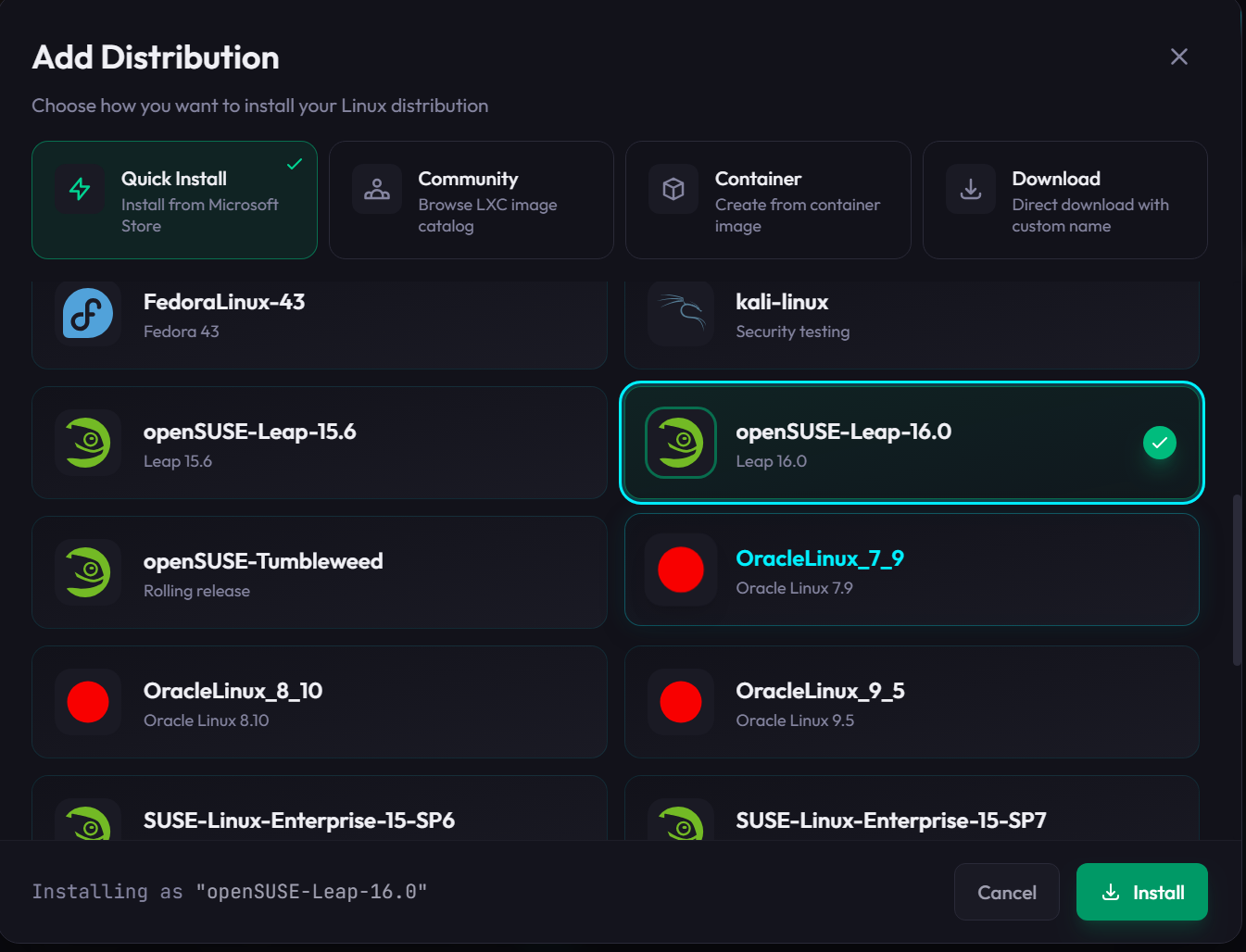
Or via command line:
wsl --install -d openSUSE-Leap-16.0
# or
wsl --install -d openSUSE-TumbleweedUser Creation Issue (Leap 16.0)
openSUSE Leap 16.0 may fail to create a regular user during WSL installation. If you're logged in as root by default:
# Create user with sudo access
useradd -m -s /bin/bash -G users yourname
passwd yourname

# Add passwordless sudo (openSUSE doesn't have wheel group by default)
echo "yourname ALL=(ALL) NOPASSWD: ALL" > /etc/sudoers.d/yourname
chmod 440 /etc/sudoers.d/yourname

# Set as default WSL user
cat >> /etc/wsl.conf << 'EOF'
[user]
default=yourname
EOF
Restart WSL:
wsl --terminate openSUSE-Leap-16.0Step 1: Remove WSL Tmpfiles Package
openSUSE's WSL image includes patterns-wsl-tmpfiles which creates the X11 socket symlink for WSLg. This conflicts with XFCE installation and breaks XRDP.
When zypper shows a conflict, choose "Solution 1: deinstallation of patterns-wsl-tmpfiles":
sudo zypper remove patterns-wsl-tmpfilesStep 2: Install XFCE Desktop
openSUSE uses patterns for desktop environments:
sudo zypper install -t pattern xfceStep 3: Install XRDP
sudo zypper install xrdpStep 4: Configure XRDP
Change the Port
sudo sed -i 's/^port=3389/port=3390/' /etc/xrdp/xrdp.iniFix X11 Socket (If Symlink Still Exists)
[ -L /tmp/.X11-unix ] && sudo rm /tmp/.X11-unix
sudo mkdir -p /tmp/.X11-unix && sudo chmod 1777 /tmp/.X11-unix
Step 5: Create Session File
echo "startxfce4" > ~/.xsessionStep 6: Disable lightdm
openSUSE may have a display manager running—disable it since we're using XRDP:
sudo systemctl disable lightdmStep 7: Enable and Start XRDP
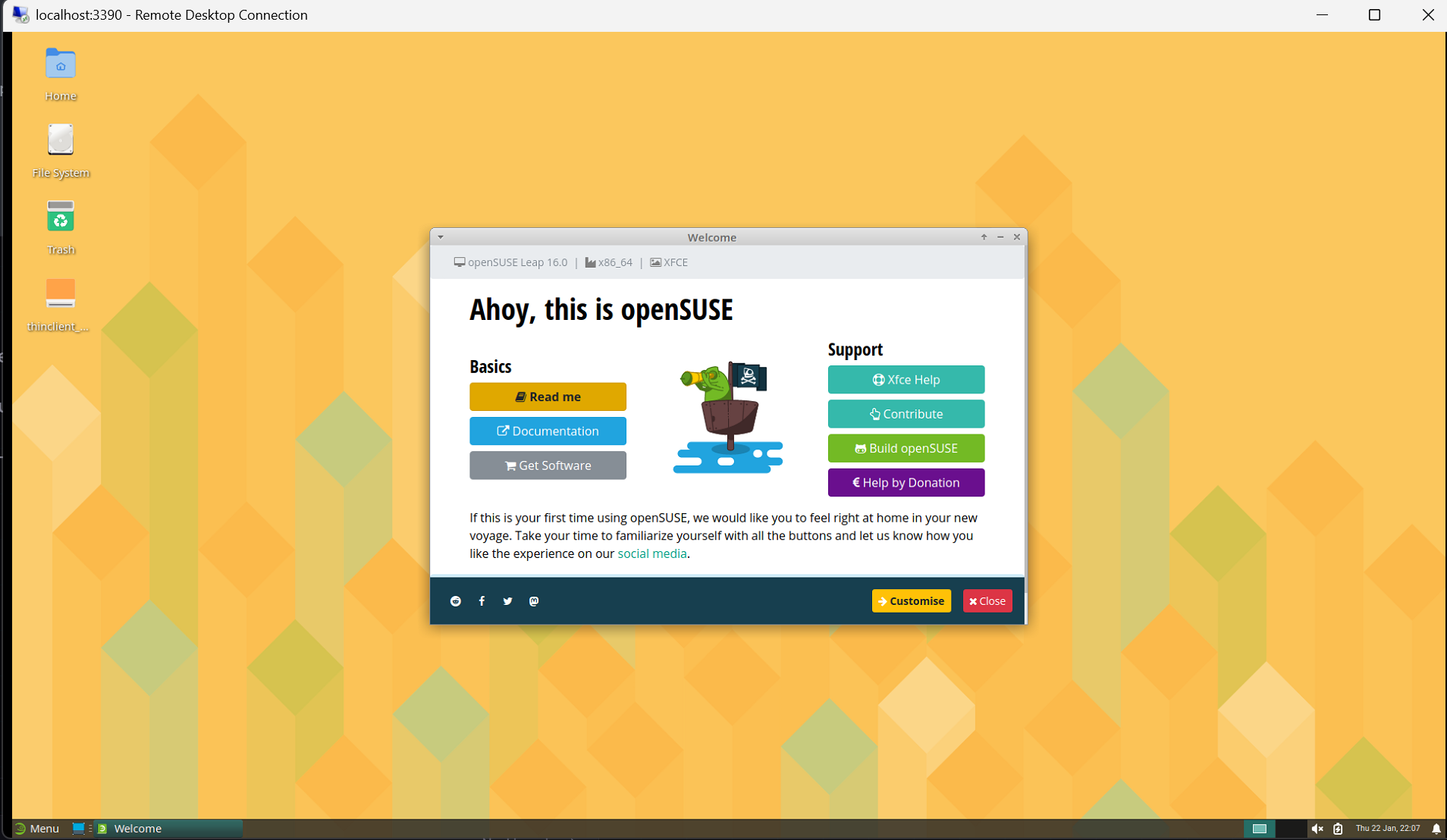
sudo systemctl enable xrdp xrdp-sesman --nowStep 8: Connect
- Open Remote Desktop Connection on Windows (Win+R, type
mstsc) - Enter
localhost:3390 - Log in with your openSUSE username and password
Quick Reference
# If running as root, create user first
useradd -m -s /bin/bash -G users yourname && passwd yourname
echo "yourname ALL=(ALL) NOPASSWD: ALL" > /etc/sudoers.d/yourname
chmod 440 /etc/sudoers.d/yourname
echo -e "[user]\ndefault=yourname" >> /etc/wsl.conf
# Then: wsl --terminate openSUSE-Leap-16.0

# As regular user
sudo zypper remove patterns-wsl-tmpfiles
sudo zypper install -t pattern xfce
sudo zypper install xrdp
sudo sed -i 's/^port=3389/port=3390/' /etc/xrdp/xrdp.ini
echo "startxfce4" > ~/.xsession
[ -L /tmp/.X11-unix ] && sudo rm /tmp/.X11-unix && sudo mkdir -p /tmp/.X11-unix && sudo chmod 1777 /tmp/.X11-unix
sudo systemctl disable lightdm
sudo systemctl enable xrdp xrdp-sesman --now

# Connect: mstsc → localhost:3390
openSUSE-Specific Gotchas
| Issue | Solution |
|---|---|
| Running as root | Create user manually (no wheel group—use sudoers.d) |
| XFCE pattern conflicts | Remove patterns-wsl-tmpfiles first |
| Black screen | Fix X11 socket symlink |
| zypper asks about conflicts | Choose "Solution 1: deinstallation" |
Available Desktop Patterns
openSUSE offers several desktop options:
# List available patterns
sudo zypper search -t pattern | grep -i desktop

# Common options:
# xfce - XFCE (recommended)
# kde - KDE Plasma
# gnome - GNOME
# mate - MATE
# lxqt - LXQt
Troubleshooting
For deeper issues—black screens, authentication problems, display errors—see the comprehensive WSL2 Desktop Troubleshooting Guide.
This Series
- Part 1: Running Linux GUI Apps with WSLg
- Part 2: Ubuntu Desktop with XRDP
- Part 3: Fedora Desktop with XRDP
- Part 4: Kali Linux Desktop with Win-KeX
- Part 5: Arch Linux Desktop with XRDP
- Part 6: openSUSE Desktop with XRDP — You are here
- Part 7: Alpine Linux Desktop with XRDP
- Part 8: WSL2 Desktop Troubleshooting Guide